Editing a Data Object
Endpoint URL: /data/edit/[data_object_id]
At any time after a Data Object has been created, you can return to edit its settings. For example, the connection parameters for accessing that data may change, or you may want to adjust the live update settings that are applied to it. There are also additional options for Data Objects that become available after it has been successfully created.
To edit a Data Object after it has been created, locate it in the list on the “My Data Objects” page. Click the  Edit button to the right of its row.
You can also edit a Data Object from within the application environment. See section 7.5.3 Creating New or Editing Existing Data Objects in the Application to learn how to do so.
Once you’ve opened a Data Object for editing, you will see a page similar to the one you saw when creating a Data Object.
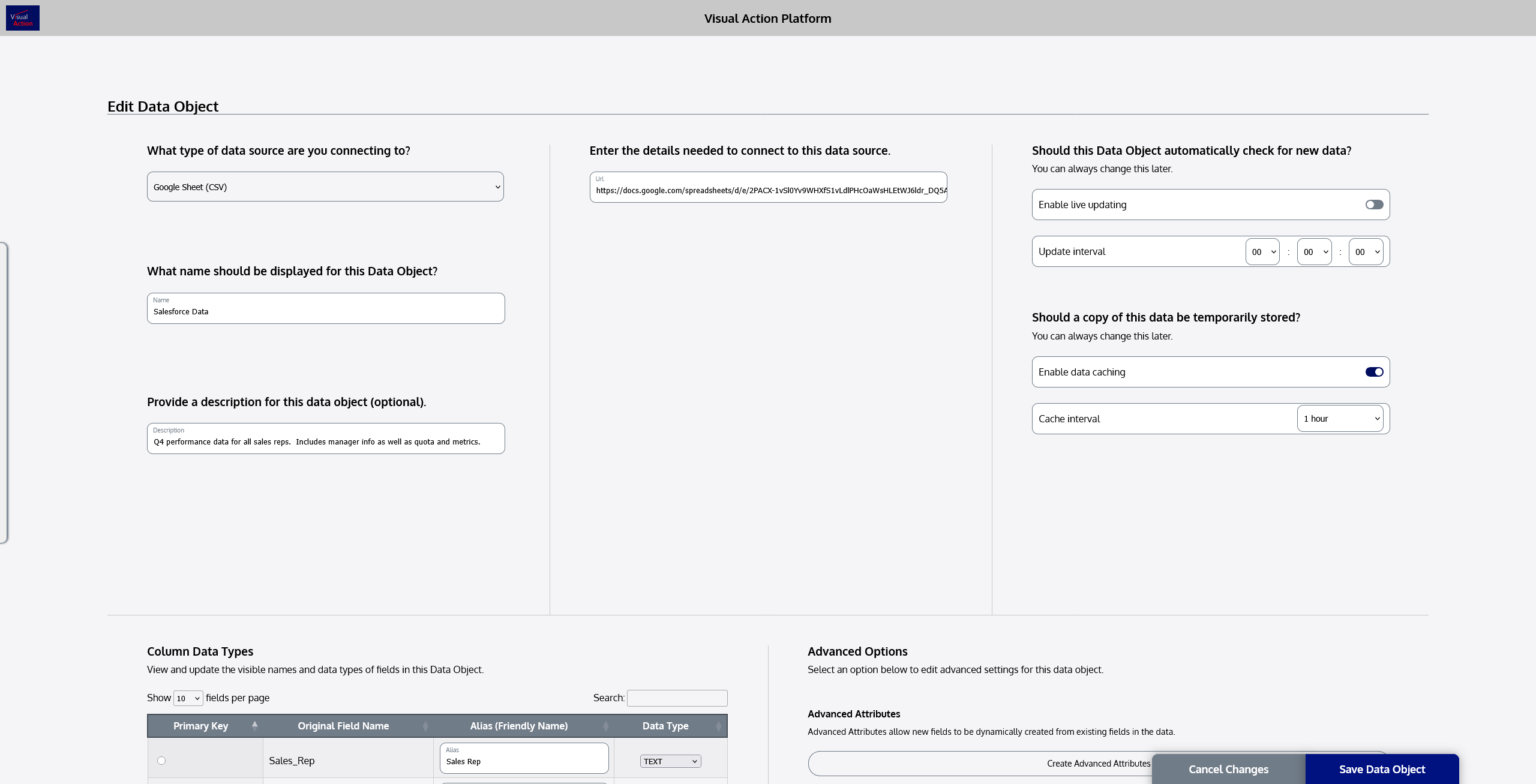
The information you already entered for this Data Object will be present. If you need to change any of the main Data Object details, you can do so here.
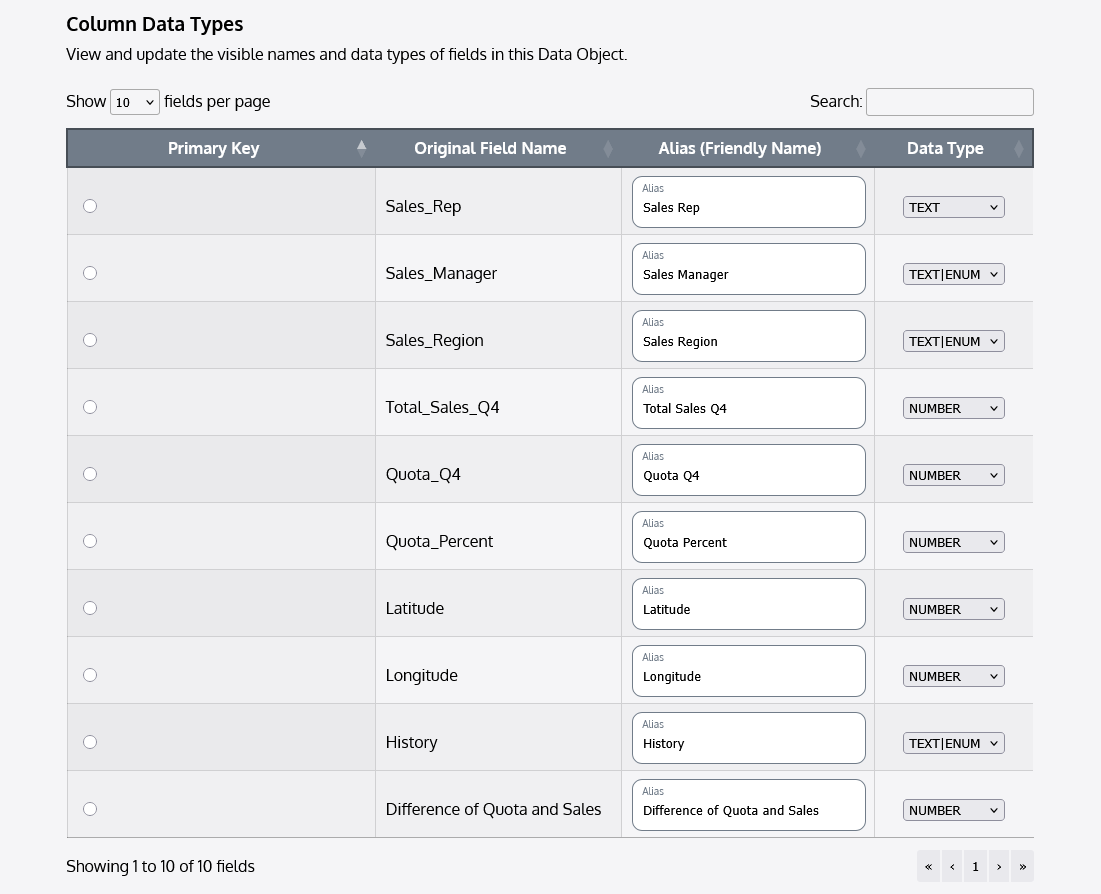
There will now also be additional options available. Beyond the main connection parameters and Data Object information, you will see a “Column Data Types” section.
Customizing Data Types
Whenever a Data Object retrieves data from the source, it automatically parses that data to determine each of the data columns. It attempts to make a more readable name for you to use in applications, and it predicts the data type for each column. You will see a table that shows the columns from your data.
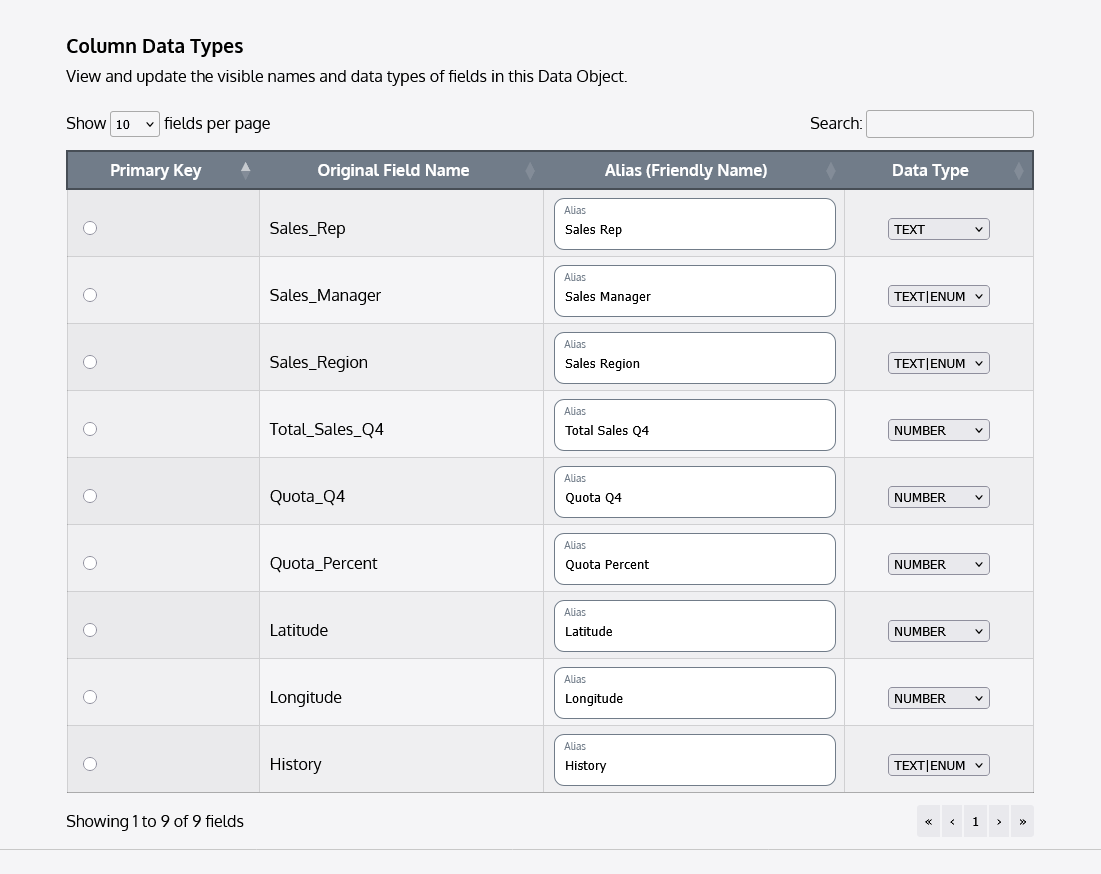
This table will show you four columns:
Primary Key
This toggle lets you determine which column in your data serves as a unique identifier for each record.
Original Field Name
Displays the original column (field) name for that column in the source data. This cannot be changed, as it is assigned at the source.
Alias (Friendly Name)
Contains input fields, using which you can enter a “friendly” or more readable name for a data column. The Platform automatically generates a more readable name when it first reads your data. For example, in the original data, a column might be named “quarter4_total_sales_value”, but in the Platform, you could enter “Total Sales Q4” as this column’s alias. That way, every time this column is referred to in an application, it will appear in the much more readable and user-friendly style of “Total Sales Q4”.
Data Type
Contains a dropdown that can be used to select the data type of each column. The Platform automatically estimates the most likely data type, but sometimes, you may want to override this to achieve a particular outcome. There are four data types that can be assigned to a column in the Platform:
| TEXT | Regular text information in any format, typically without (many) repeats of the same value across multiple rows or which does not need to be categorized based on the value. |
|---|---|
| TEXT|ENUM | Text data that is enumerable, meaning that there are repeats of values across multiple rows. This data type indicates that the text data in that column is not typically unique to each row, and is used for options that you would like to Group by in a Flaremap. Select this type if you have repeating text values in that data column. |
| NUMBER | Any purely numerical data. |
| DATE | Dates, which are text data formatted into any standardized date format. |
You can adjust each of these properties as needed. Save your Data Object to preserve the changes.
Advanced Options
Endpoint URL: /data/edit/advanced/[data_object_id]
Data Objects also feature some advanced options for further customizing and controlling the way data behaves in applications.
Advanced Attributes
Advanced Attributes are columns that are dynamically created based on columns that already exist in the data, or from static values.
Advanced Attributes can be used to derive additional data from original source data, without affecting the source in any way. Advanced Attributes are not preserved or written back to the data source, but are maintained by the Platform.
To create Advanced Attributes, click the “Create Advanced Attributes” button.

You will be taken to the Advanced Properties screen for your Data Object.
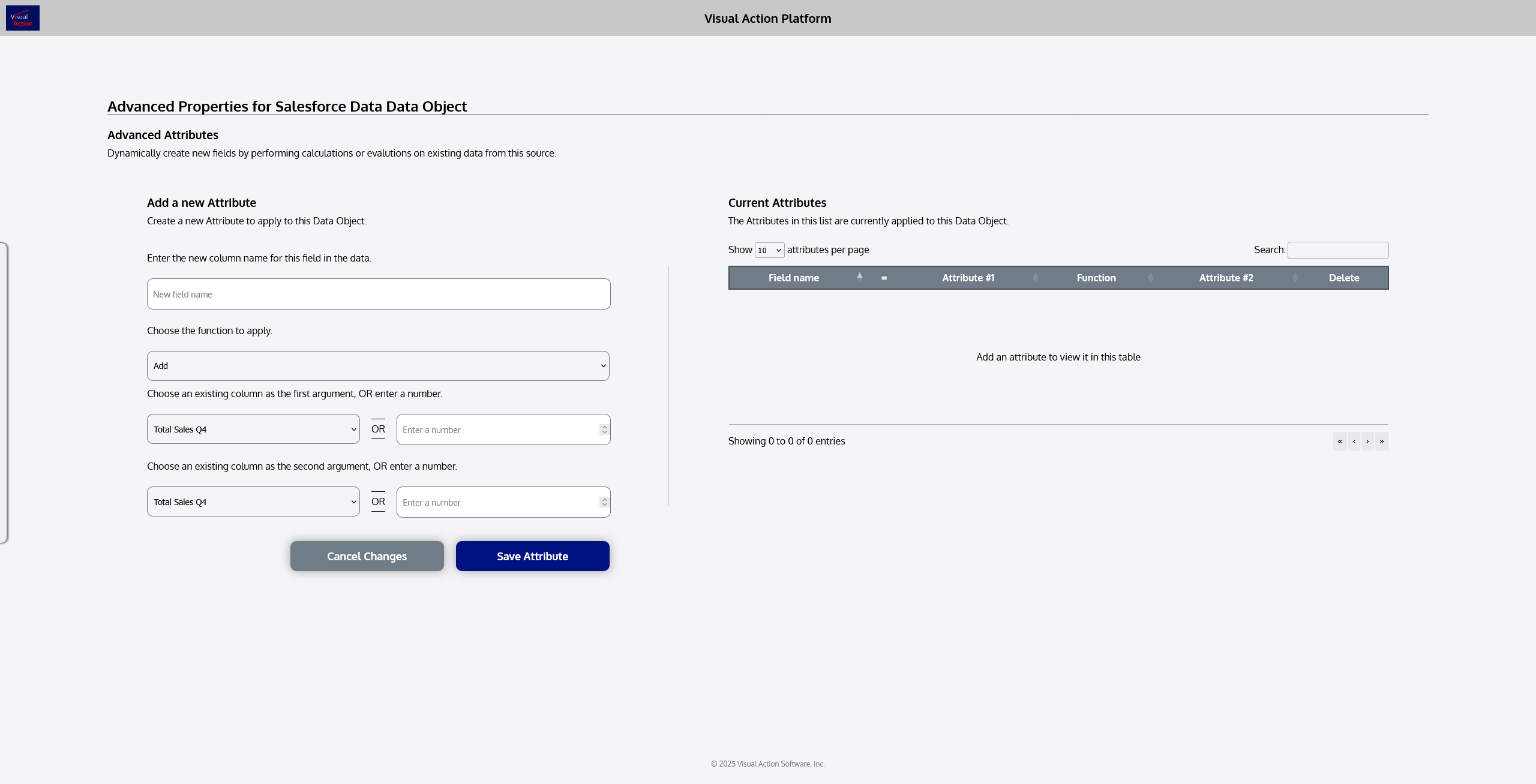
To create a new Advanced Attribute, look to the section titled “Add a new Attribute”.
First, enter a field name to assign to the new data column that will be created.

Then, choose the mathematical operation to be performed between the two arguments (columns). You can perform addition, subtraction, multiplication, division, or calculate a percentage.
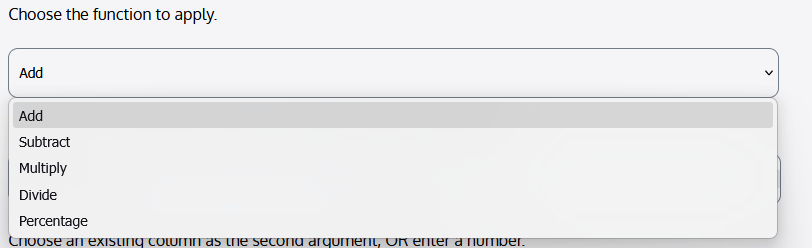
Then, choose the first argument for the equation. You can choose a column from the dataset, or enter a numerical value.
If a numerical value is entered, it will be prioritized for use over the selected column. If you are using a column, leave the number input blank.

Repeat this process to choose the second argument for the calculation.
Beneath the inputs, but above the buttons, you will see a preview of the calculation for the Advanced Attribute you are creating.

Once you have entered your arguments accordingly, click “Save Attribute” to add the Advanced Attribute to your Data Object.

Your new Advanced Attribute will appear in the “Current Attributes” list to the right. This table will display the breakdown of each Attribute you create, and also provides a  Delete button, which you can use to remove Advanced Attributes.
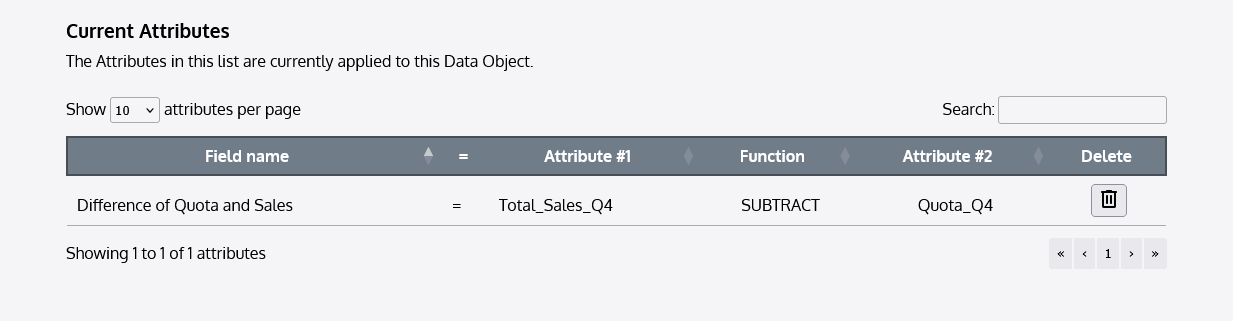
You can continue to add as many Advanced Attributes as you’d like while on this screen.
Once you are done adding Advanced Attributes, return to the Edit page for your Data Object. You will see your Advanced Attributes appear in the “Column Data Types” list as available columns to be used in applications.
Custom Logic (Server-side)
Data Objects allow source data to be passed through custom logic before being provided to an application. This allows custom business logic, ad-hoc computations, and transformations to be performed within the Platform, enabling further analysis on data without altering the source data.
To learn how to configure a custom logic function and make it available to Data Objects in the Platform, refer to the technical documentation. Only administrators are permitted to implement logic functions.
Any backend logic functions that are available to be used on your Data Object will be displayed in the dropdown beneath “Custom Backend Logic”. If you’d like to apply a logic function to your Data Object, simply select the identifier of the function you want to use from the list. If you want to use data as it is received from the source, leave “None” selected.
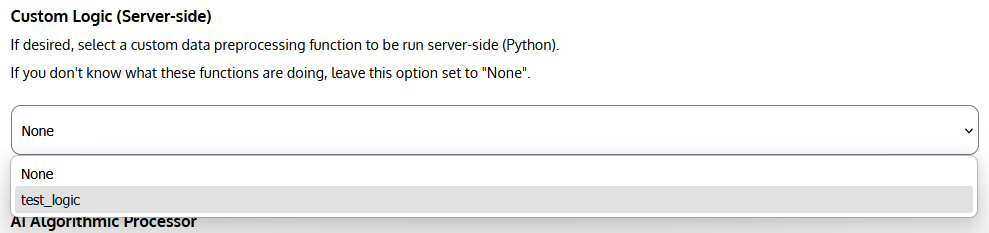
Custom logic functions can and often do manipulate the structure or contents of a dataset before it reaches an application. If you don’t know what a logic function is doing, or if it wasn’t designed to work with your Data Object (data source), avoid selecting it for your Data Object. This could cause existing applications to no longer work, or cause your dataset to be much different than expected.
Once you have configured your Data Object as necessary, click “Save Data Object” to save and update it. If you’d like to share your Data Object with other users or groups, continue on to the next section.

Sharing a Data Object
One of the most useful capabilities within the Visual Action Platform is the ability to share Data Objects. This allows several members across a team or organization to use the same Data Object, configured with the same connection parameters and settings, without each user needing to set it up individually for his or her apps.
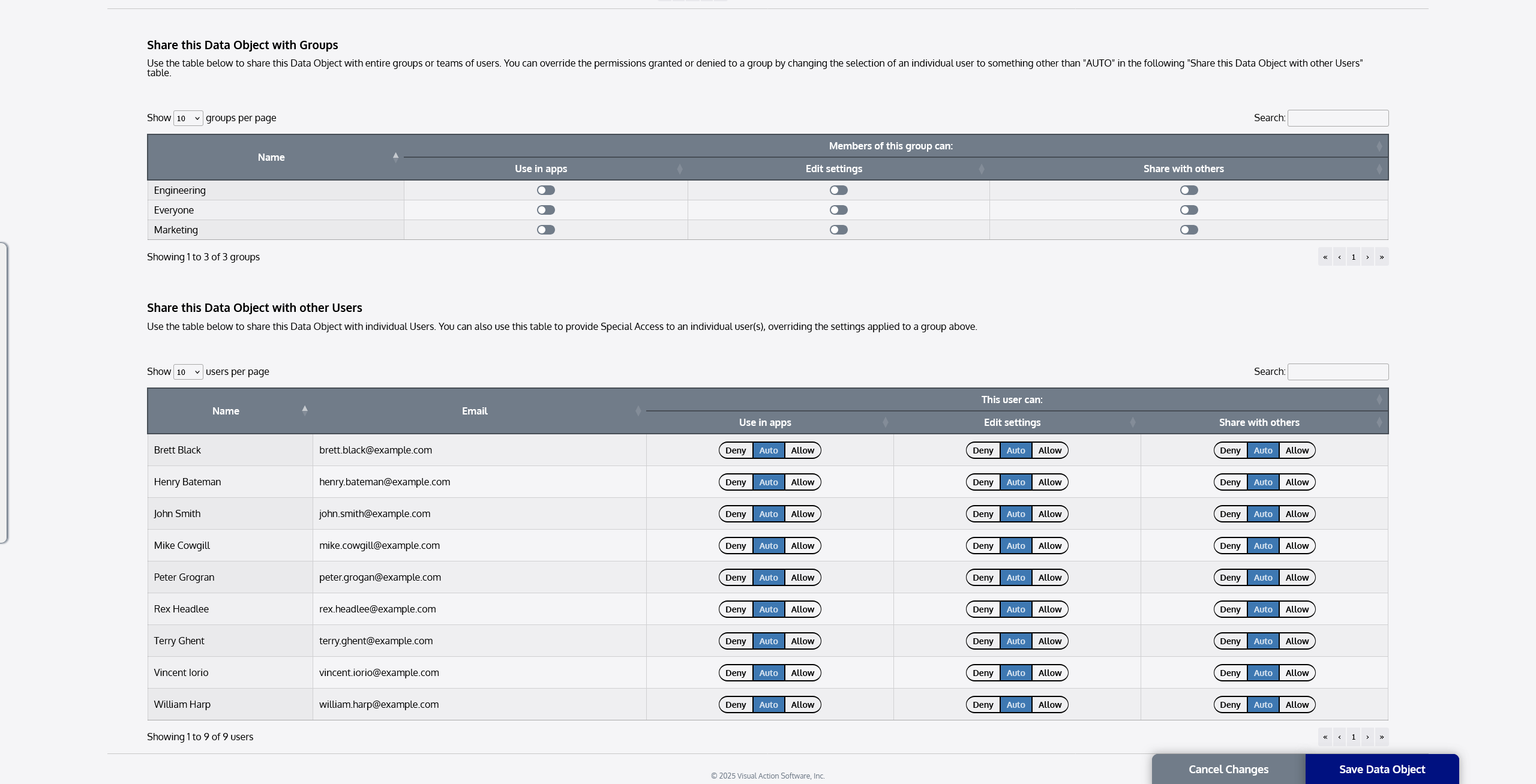
Sharing a Data Object can be done from the same page where you create/edit it. To find the sharing settings for a Data Object, scroll down to the bottom of the page. You will see some tables that show the groups and users that exist in your organization’s deployment.
Sharing: Permission Levels
There are three levels of sharing permission that can be granted (or denied) to other users in the Platform. They are:
Use
Sharing use permission with a user allows that user to use the Data Object. They are able to access the data it provides in applications, but are not allowed to edit its settings or share it with other people.
Edit
Sharing edit permission with a user allows that user to both use the data provided by a Data Object, but also to edit the settings of that Data Object. For example, if you grant your colleague edit access to a Data Object, he or she could change the options you configured, such as its name or connection parameters.
Providing edit access does not enable that user to share the Data Object with other people; this permission must be explicitly granted.
A user with edit access to your Data Object is not permitted to delete it. Only the original owner or a Platform administrator may delete it.
Share
Providing share permission to a user allows that user to share the object further with other users. Share access should only be given on non-sensitive data sources or to users who can be trusted to share only with authorized users.
As the owner of a Data Object, you can control the permissions granted to users and groups at any time. Only an administrator can override a Data Object owner’s selection.
Sharing with Groups
The first table you will see under a Data Object’s sharing settings is “Share this Data Object with Groups”. Here, you can apply sharing settings to entire groups of users. A group is a collection of users that share something in common.

For example, Brett, Henry, John, and Mike may all be on the Engineering team, and thus often use similar datasets and have similar access rights to data. Likewise, Peter, Rex, and Terry may be in Marketing – while they share datasets amongst each other, this data is quite different from that often used by Engineering. Vincent and William are not on either of these teams, but are part of the same organization (Everyone).
Perhaps you are a member of the Engineering team, and are creating a Data Object for a common data source that everyone on the team uses. Rather than having to select each member of the team individually, you can share your Data Object with the entire Engineering group. This will grant the specified permission to everyone who is a member of that group (in this case: Brett, Henry, John, and Mike).
To share your Data Object with a group, simply toggle the corresponding switch in that group’s row for the permission you want to grant. For example, to share the ability to use and to edit (but not to share, so they don’t share outside of Engineering) with the team, your selection might look like the following table:

Apply your selections accordingly for each group that you want to share with.
Sharing with Individual Users
The second table you will see under a Data Object’s sharing settings is “Share this Data Object with other Users”. This table allows you to grant or deny permissions to individuals, as opposed to entire groups.
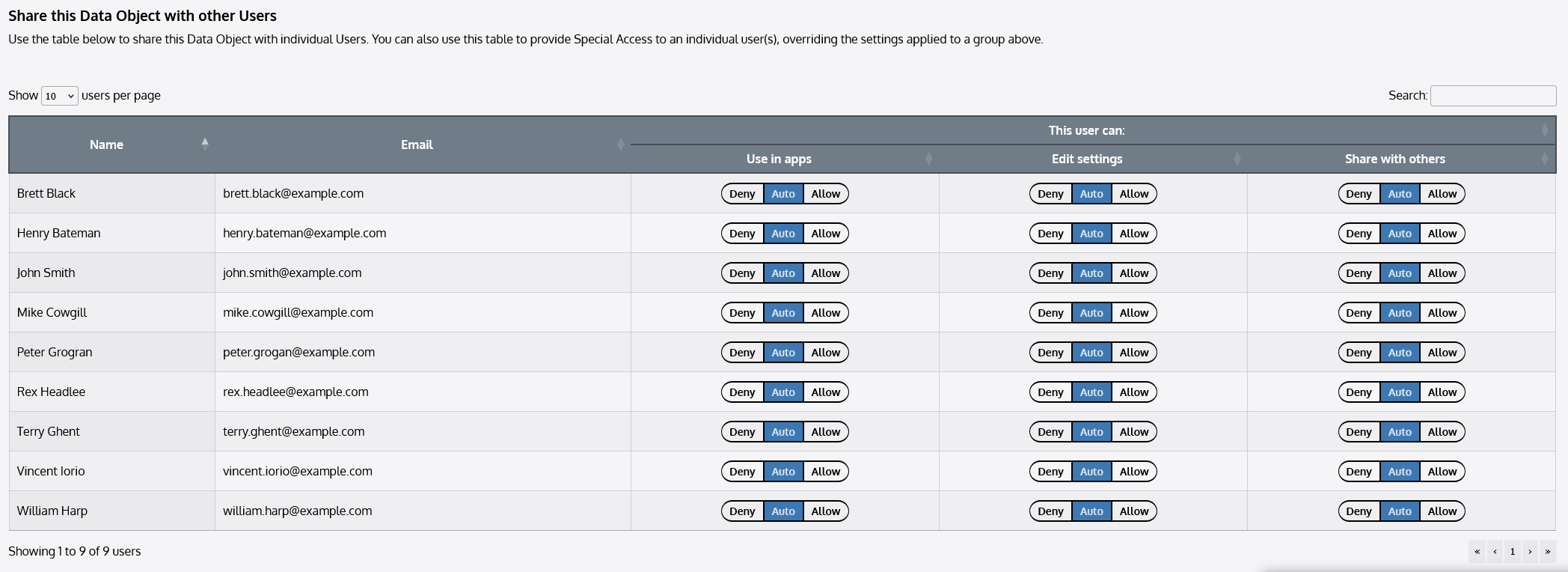
Enabling individual sharing controls is powerful in several scenarios:
- You only want to share a Data Object with certain people, who may not be in the same group as one another.
- You want to grant specific people access to a Data Object, even though they are not in a group that is receiving access.
- You want to deny specific people access to a Data Object, even though they are a part of a group receiving access.
- You want to ensure that certain users are granted or denied permission, even if another user with share permission changes groups sharing settings.
In this sharing table, you will see that each user’s permission toggle is a bit more complex than those for sharing with groups.

There are three options that you may select for each permission level for a user. They are:
Deny
Setting a permission to deny for an individual user will deny that user the specified permission, even if that user is a member of a group that is granted the corresponding permission.
Auto (default)
Automatic permission does not override any group permission settings, and grants or denies permission accordingly. For example, a user with “auto” selected for “Edit settings” will receive edit access if he or she is in a group with edit access. If that user is not in any groups with edit access, he or she will not receive this permission.
Allow
Setting a permission to allow for an individual user ensures that the user is granted the specified permission, even if that user is not a member of any group that is granted the corresponding permission.
By default, all permissions for all users (other than the owner, which you will not see in the user list) are set to “Auto”. This means that permissions for every user will only be granted according to any groups they are a part of that are granted that permission, without any overriding rules.
To provide a permission to a specific user, locate the permission toggle for the permission you are setting, in the row for the user you are applying it to. Select the option you want.
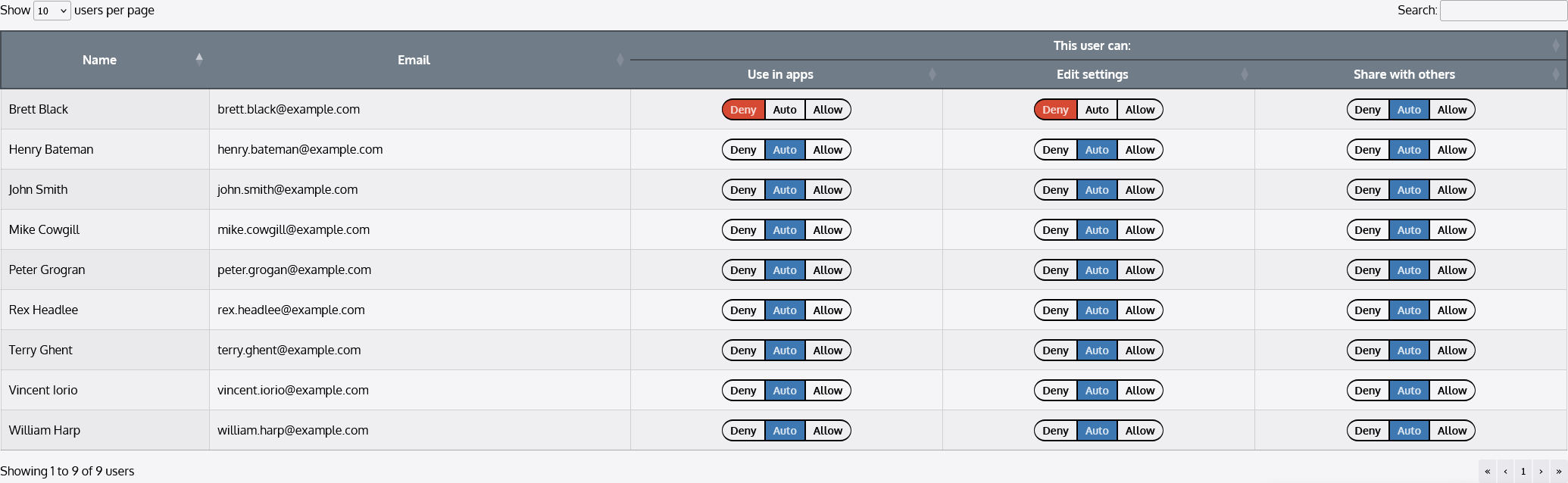
For example, we previously granted the Engineering group use access and edit access. Perhaps Brett is new, and is not yet cleared to access this data. You want to grant the rest of the Engineering team access, but ensure that Brett is denied access. You would select “Deny” for Use in apps and Edit settings under Brett.
(You could also choose “Deny” for Share with others, but since the Engineering group does not have share access, he would not have this permission anyway. You may choose to deny this permission just in case you change the Engineering group’s sharing permission later.)
Now, you also want to share with Peter. Peter is in Marketing, but uses some engineering data as part of marketing programs. He is the only one with clearance to access this data in Marketing, and you want to grant him access to use (not edit) it, even though the rest of the Marketing group is not given access. You would select “Allow” for Use in apps under Peter.
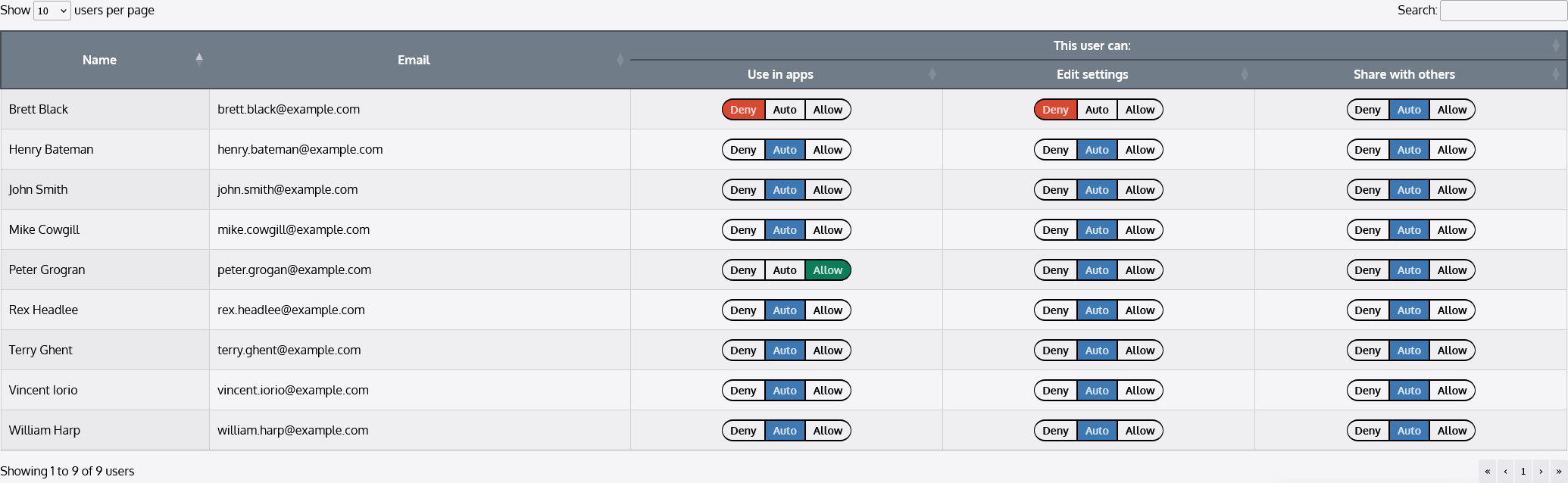
Now that you’ve applied all “Special Access” rules (i.e.: permissions that override group permissions), you decide to leave the rest of the users’ permissions on “Auto”. They will be granted or denied permission according to any groups they are in.
Once you’ve selected your sharing and permission options, click “Save Data Object” to save and apply your selections.
Final Note
At this time, Data Objects can only be shared from the Data Objects editing page in the Platform. Sharing settings cannot be changed from within the application environment, although other Data Object settings can be changed there.