Connecting to Data
When beginning to build a new application, the most critical early step is to include at least one Data Object, so you have some data to build your application around.
Start by opening the Menu and navigating to “Data Manager,” or by pressing Ctrl + Alt D.
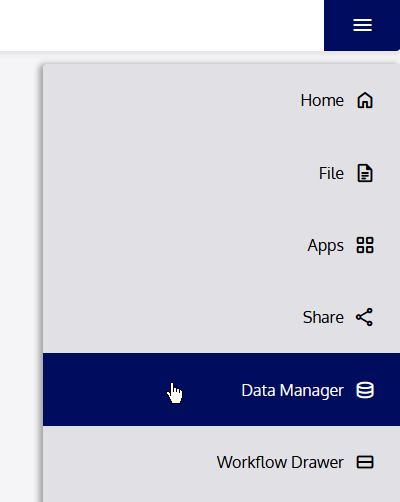
Data Manager
The Data Manager provides an interface for managing Data Objects from within the application environment. Once you’ve followed the above instructions, you’ll see the Platform Data Manager open to the left, in the Editor Panel.
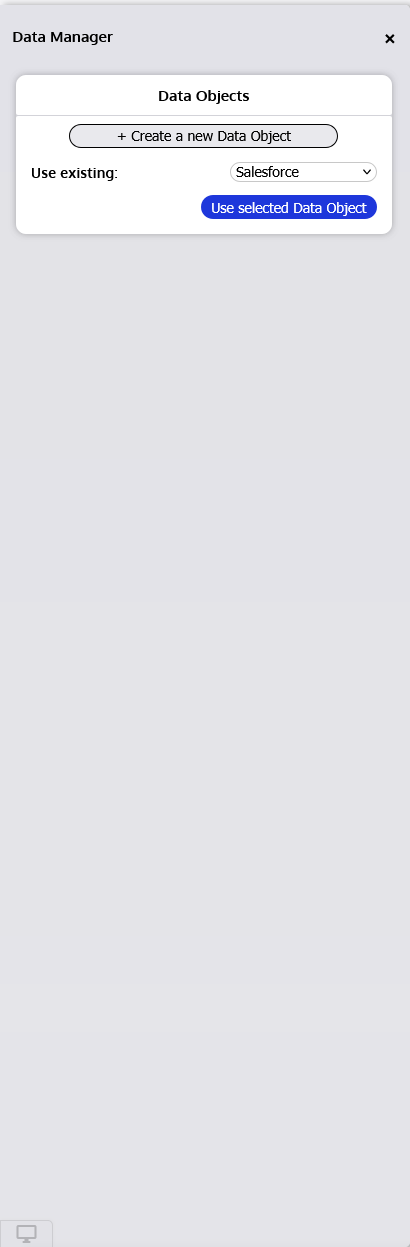
By default, in a new application, there will be no Data Objects present in the Data Manager. Continue on to learn how to use Data Objects in your application.
Using Existing Data Objects
Often, Data Objects will already be created and configured when you begin building an application. Existing Data Objects that you own or have permission to use will be available to you in any application you are editing.
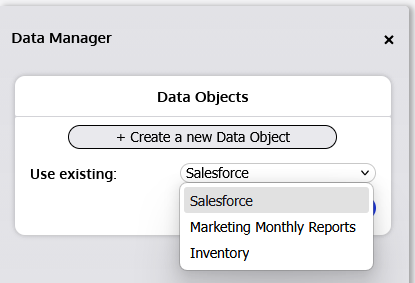
To use an existing Data Object in your application, locate its name in the “Use existing” dropdown in the Data Manager. Select it from the list, then click “Use selected Data Object”.

Once you’ve selected the Data Object for use, the Platform will automatically retrieve data using that Data Object, so it’s ready to use. When ready, you will see a tile appear in the Data Manager, representing that Data Object. Any Data Objects you see here are currently active in your application.

Each Data Source tile displays several items:
Primary Selector 
Selecting the star icon for a Data Object makes it the application’s primary Data Object. This means that it will be used by default in all Flaremaps and Extensions (but you can always change which Data Object is being used for Flaremaps and Extensions).
Name
The name of the Data Object.
Source Type
The source type of the original data source from where the Data Object is getting data.
Edit Button
Allows you to edit the Data Object from within the application environment. Editing a Data Object in the application environment is nearly identical to creating a Data Object in the application environment, except that you are altering the settings for an existing Data Object. To see more details about the interface for editing a Data Object in-app, refer to section 7.5.3 Creating New or Editing Existing Data Objects in the Application , where creating Data Objects in-app is discussed.
Remove Button
Allows you to remove the Data Object from your application. Note that this does not delete the Data Object itself, it simply removes it from your application (so it’s not loading data that won’t be used). You will be prompted to confirm (✓) or cancel (×) removal when clicking this button. A removed Data Object can always be added back into the application.
You can use each of these components to control the Data Objects within your application.
Creating New or Editing Existing Data Objects in the Application Environment
Conveniently, you can create and edit Data Objects right from within the application environment! This way, you don’t need to leave your application to make changes to your Data Object settings or to connect to a new data source.
To create a new Data Object from within the application environment, open the Data Manager and click the “+ Create a new Data Object” button.

To edit an existing Data Object from within the application environment, it must first be included in your application (see section 7.5.2 Using Existing Data Objects below). First, make sure it is available, then click the “Edit” button.

The Data Object creator/editor will appear in the Editor. Most of the fields available here are similar to those in the main Data Object creation/editing pages, so you can enter the relevant information and configurations accordingly, just like you would on those pages. To reference the detailed Data Object creation and editing options, see section 5.1 Creating a Data Object or 5.2 Editing a Data Object.
There are some differences between the in-app Data Object creator/editor and the standard Platform creator/editor. These differences are described below.
Fronted Logic
As previously described, you can apply custom logic to your Data Objects, and their data will be passed through that logic before being presented in an application.
When you created a Data Object on the main page before, you were able to select backend logic options. These logic functions are run on the server, before data is ever sent to your device.
Frontend logic functions run in your browser, after data has been received by your device but before it is applied to your application. Due to technical limitations, you cannot select frontend functions from the main Data Object creation page, but you can from within the application environment.
Only administrators can enable logic functions to be available. You should not apply a logic function to your Data Object unless you know that it is the right one, and that the output is what you want within your application.
If you want to apply frontend logic to your Data Object, select the function identifier from the “Frontend Function” dropdown in the “Data Logic” section when creating your Data Object.

Utilities
There are some additional utilities around Data Objects that are available within the application environment only. For example, you can export the current dataset of a Data Object from the Data Manager. Data can be exported in an Excel Sheet, a CSV file, a JSON Object array, or a 2-D JavaScript array.

Sharing Settings
At this time, Data Object sharing can only be done from the main Platform environment, and cannot be done from within the application environment. To share your new Data Object, please return to your “My Data Objects” page, edit the Data Object you want to share, and apply your desired sharing permissions.
Note that data exported from a Data Object within the application environment will reflect the active dataset, including all changes made by logic functions or Extensions. The output data and structure may, therefore, differ from the original source data.
Choosing a Primary Data Object
If you’ve included multiple Data Objects in your application, you can choose which to deem the “Primary” data object. The Primary Data Object is the data object by which Flaremaps and Workflow Extensions are driven by default. You can always change which Data Object an Extension or Flaremap is using in its own settings, but it’s helpful to choose the most frequently used Data Object as the Primary.
In the Data Manager, under “Data Objects” where each of the Data Objects you’ve created shows up, there will be a tile for each Data Object. Each tile will contain a  (star) icon used to indicate which Data Object is the Primary. If you only have one Data Object, this will automatically be selected and may not be changed. If you have multiple Data Objects, the first one you created will be marked as Primary by default.
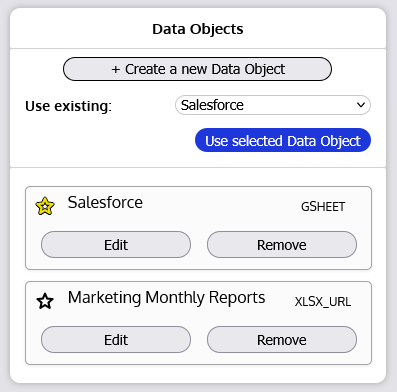
To change which Data Object is the Primary, simply select the  (star) icon in the tile of the Data Object you want to make Primary. If you delete a Data Object that is marked as the Primary, a new Primary will automatically be selected.
Removing a Data Object
If you need to remove a Data Object from your application for any reason, simply open the Data Manager and locate the tile for the Data Object you’d like to remove.
Click the “Remove” button on that Data Object’s tile.
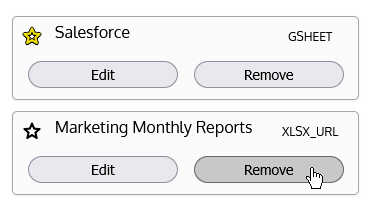
You will be prompted to confirm removal with another pair of buttons.
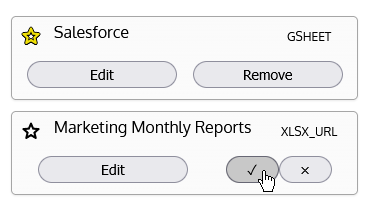
To confirm removal, click the ✓ (checkmark) button. To cancel removal, click the × (cancel) button.
Removal of a Data Object from your application is not the same as deleting the Data Object. Removal simply makes the Data Object unavailable in your application, so it’s not unnecessarily loading data that won’t be used. You can always reintroduce a removed Data Object into your application at any time. To completely delete a Data Object, return to the “My Data Objects” page and delete it from there.