Creating a Data Object
Endpoint URL: /data/new/
To connect to your data source, you need to create a Data Object. There are three ways that you can initiate the creation of a new Data Object:
- From the Data Objects page
Navigate to the “My Data Objects” page by clicking  in the Navbar or from the Home page.
Click the “Create New” button.

- Navigating to the New Data Object URL
In the address bar of your browser, enter the URL of your organization’s Visual Action Platform deployment, and append /data/ to it. Click Enter to be taken to the new Data Object creation page.
Example: https://www.example.com/data/
(Replace www.example.com with your organization’s deployment URL)
- From with the Application Environment
Since this is a feature of the application environment, please see section 7.5.3 Creating New or Editing Existing Data Objects in the Application to read how to create a Data Object from within the application environment.
Once you have initiated the creation of a new Data Object with option 1 or 2 above (the process is different for option 3, within the application environment), you will see the “Create a Data Object” screen.
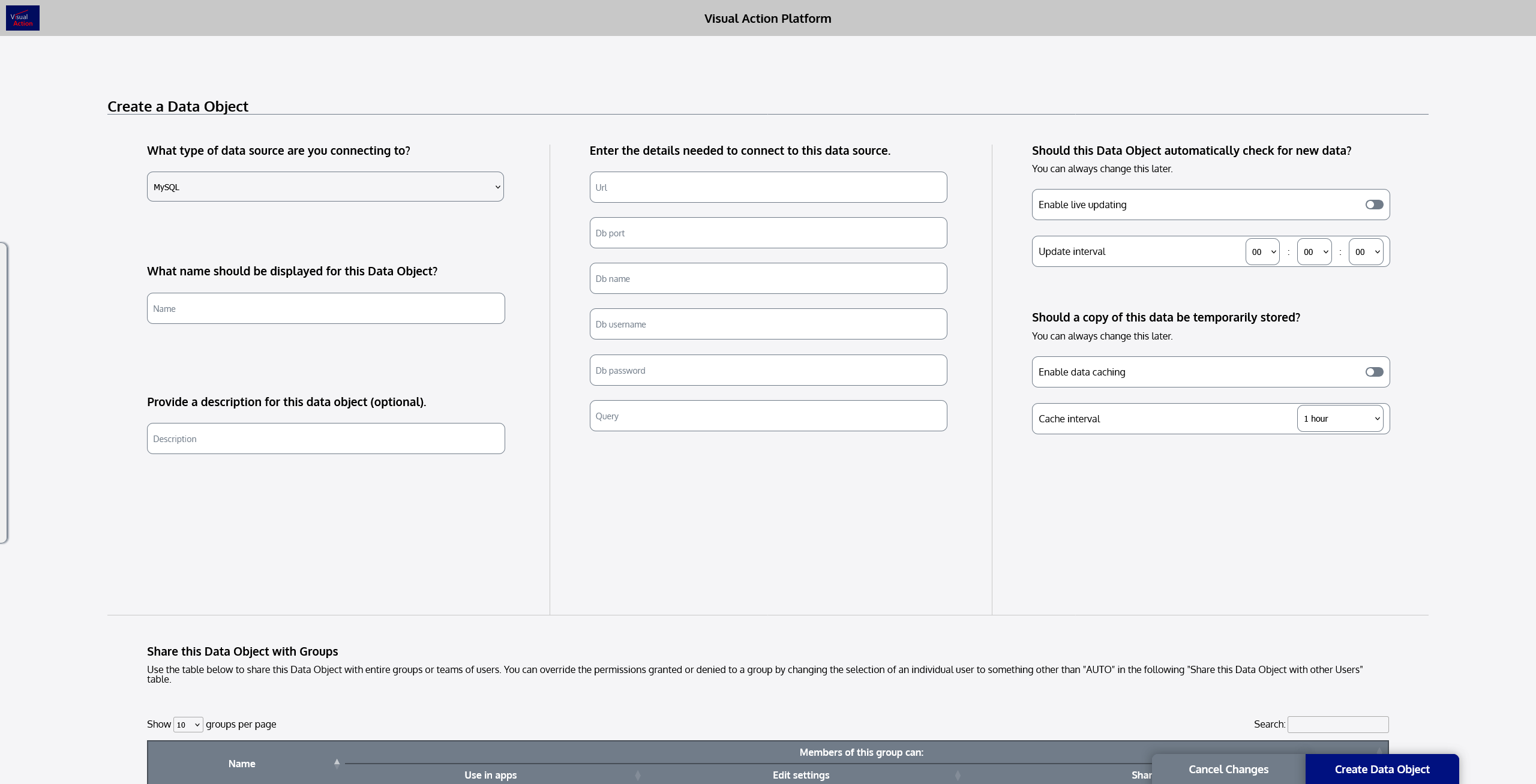
This page allows you to enter all of the information that’s needed to initially connect your Data Object to the original data source.
- Begin by select the type of the original data source that you are connecting to.
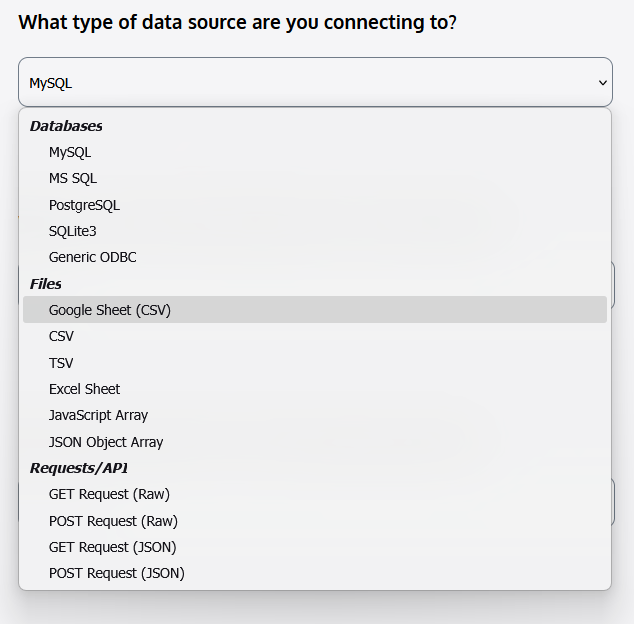
- Enter a name for your Data Object.

- If desired, enter a description for your Data Object. It is helpful to describe the data, and sometimes the intended purpose, of the Data Object.

- Enter the connection parameters for your data source. This may simply include a URL, but may include additional details, depending on the type of data source you are connecting to.
Note that the connection details section will automatically update when you change your source type selection. The inputs you see may differ from the image below, but the Platform will automatically reveal the inputs needed for the source type you selected.

Once you have entered these connection details, you should be able to connect the Data Object to your source data. The remaining options are all optional, and are configurations that affect how your Data Object will behave in the Platform. If you want to configure these options, continue on to step 5. If not, click “Create Data Object” in the lower-right corner of the screen.

- Configure Live Update settings for this Data Object.
Every Data Object created in the Platform is eligible for live updating. Live updating enables the Platform to automatically retrieve the latest data from your data source on a scheduled interval.
To enable live updating, toggle the “Enable live updating” option.

Each Data Object can have its own unique update interval. For example, you could set this Data Object to check for updates every hour, but create a different Data Object that checks for updates only once per day. Data Objects can also be set to update on a unified schedule within an application (see section 7.6.1 Data Services for details on configuring this).
To assign an update interval to your Data Object, use the “Update Interval” dropdowns to select the precise interval you want to use. The inputs are in the order of hours, minutes, then seconds (HH : MM : SS). If you only want this Data Object to update on an application’s global interval, leave the selection set to 00 : 00 : 00 (but make sure that you configure your application’s global live update settings).

- Configure caching settings for this Data Object.
Data Objects also have the ability to be cached, meaning that a retrieved copy of data from the source will be temporarily stored and used (instead of retrieving the latest data every time). By default, no data from a source is stored in the Platform database at any time. It is only retrieved and held in memory while using an application. Data caching enables data to be temporarily stored to decrease load times when data does not often change.
To enable data caching, toggle the “Enable data caching” option.

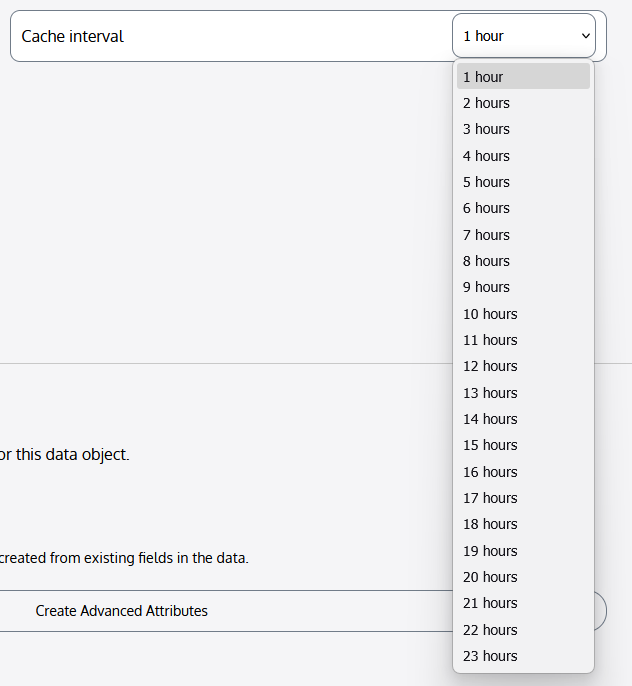
Data can be cached for up to one day, in hourly intervals. You can select how long you want data to be cached. Once a cache period expires, the stored data is deleted, and the latest data is retrieved. The cache period then restarts.
To select the cache duration for your Data Object, choose an option from the “Cache interval” dropdown.
After you have configured each of these options, you are ready to complete the creation of your new Data Object. You will see some more options on the “Create a Data Object” page, such as sharing options, but for the purposes of this guide, those options will be reviewed in a later section (section 5.2 Editing a Data Object). If you’ve already reviewed that section, you may adjust those options now. Otherwise, continue reading this guide, and return to modify those options later.
Click “Create Data Object” in the lower-right corner of the screen.
If the Platform was successfully able to connect to your data source and retrieve data, you will be returned to the “My Data Objects” screen, and your new Data Object will be shown in the list.

If errors were encountered, the “Create a Data Object” screen will return, and you will be asked to check the information you entered to ensure that your data source is accessible by the Platform.