Adjusting Settings and Preferences
It’s almost time to begin building your application, but there are some important and helpful options in the “Application Settings” to be familiar with first. Some options do not need to be adjusted yet, but many may be useful to be aware of during the design of your application.
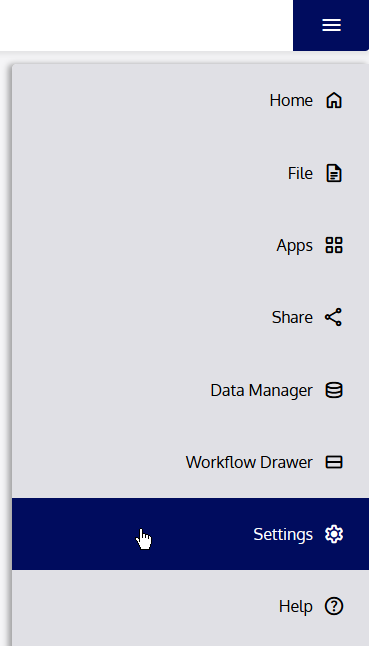
Navigate to the Menu and click “Settings and Preferences.”
The Editor panel will open to show you all the available controls you have over the application and its performance.
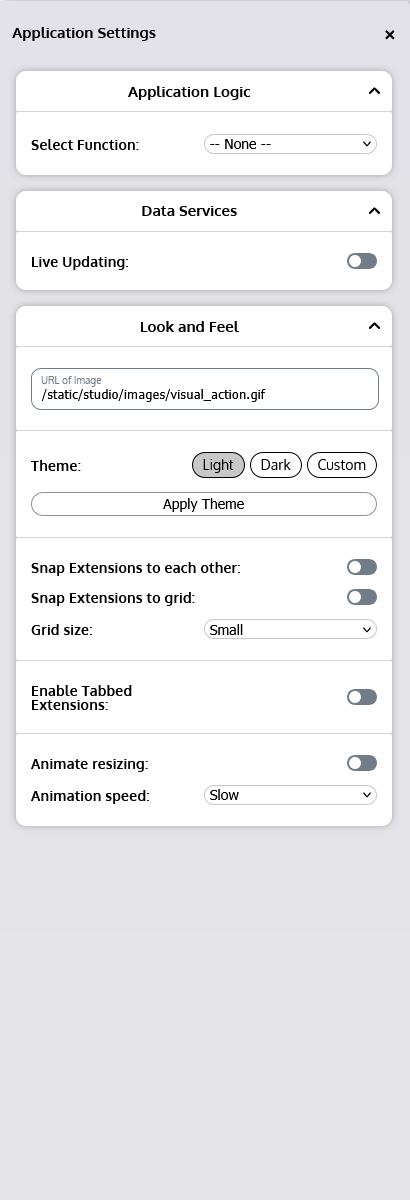
Adjust any desired settings and preferences to meet your needs. Use the information below as a reference for information about the function of the available options.
When complete, close the Editor panel by clicking the × in the upper right corner of the panel. Changes to Settings and Preferences are automatically saved.
Data Services
Data Services contains controls that allow you to manage how the application handles data in the background.
| Service | Option | Description |
|---|---|---|
| Live Updating | Enabled | Toggle switch indicating whether live updating should take place or not. Entirely enables or disables live updating for the application; if disabled here, no Data Objects will be updated, even if updating is enabled within that specific Data Object. |
| Frequency (HH:mm:ss) | Indicates the global interval on which the application should automatically check for data updates, in hours, minutes, and/or seconds. Minimum of 5 seconds. |
Look and Feel
Look and Feel contains controls allowing you to set up the application however is most comfortable for you to interact with it. This includes controls that make it more comfortable during editing as well as during usage.
| Service | Option | Description |
|---|---|---|
| Logo | URL | Allows input of a URL to a custom image to be used as a logo for the application (appears in the Navbar, in the upper-left corner). |
| Theme | Theme | Indicates which theme (style set) to use for the application. There are three options: • Light (the default, light color scheme) • Dark (an included dark color scheme) • Custom (enables custom CSS to be applied as a theme) See section 7.11.1 Custom Themes for further details on custom themes. |
| Grid Snapping | Snap Extensions to each other | Indicates whether to snap the edges of Extensions to each other when moving them around the Desktop. |
| Snap Extensions to grid | Indicates whether to use an invisible grid to align Extensions when moving them around the Desktop. When off, Extensions move smoothly and freely. | |
| Grid size | Sets the (invisible) grid size to use when “Snap Extensions to grid” is enabled. There are three sizes: • Small (10px × 10px) • Medium (20px × 20px) • Large (30px × 30px) Clicking the dropdown for this option automatically enables “Snap Extensions to grid.” | |
| Tabbed Extensions | Enable | Enables Tabbed Extensions, which allows multiple Workflow Extensions to be merged together into a single, tab-separated Extension element. When enabled, a Tabbed Extension can be formed by simply dragging and dropping one Extension onto another (a blue border will indicate that it can be dropped). If a Tabbed Extension has already been formed prior to this option being disabled, the Extensions within it will still support being Tabbed after this option is disabled. |
| Animations | Animate resizing | Indicates whether to animate the resizing of Extensions. When disabled, Extensions move immediately with the mouse when resized, without smooth animations. Disabling animations can help with performance on slower machines. |
| Animation speed | Sets the speed of the animation while resizing. There are two speeds: • Slow • Fast |