Advanced Flaremap Configuration
The final creator group available in the Flaremap configuration options is “Advanced Configuration.” This contains advanced controls for experienced Flaremap users and technical personnel.

Only modify controls in this section if you are well-experienced with creating Flaremaps in older versions of the software (Flaremap JS 6.9 and below) and/or are thoroughly familiar with the contents of the Flaremap Development Kit Technical Reference.
Cell Display
This control group contains options for the drawing and display of cells within the Flaremap. They may be modified to improve accessibility of the Flaremap as well as to achieve custom Flaremap designs.
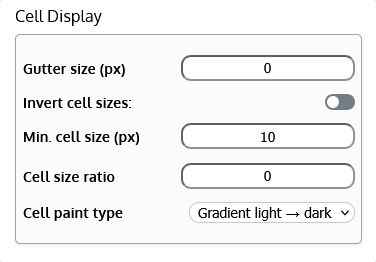
Gutter size (px)
The gutter size defines the width of the lines between cells in the Flaremap field. By default, there is no space between cells. Increase this number to increase the line width between cells. Width is measured in pixels (px).
Invert cell sizes
Inverting the size of cells uses different logic than the default Flaremap algorithm. Cells that would normally be the smallest (lowest value) become the largest cells, and the largest become the smallest, respectively. This feature is useful when the most important values are actually the smallest values rather than the largest.
Min. cell size (px)
This value enforces a minimum size for cells, in pixels (px). No cell may be drawn smaller than the minimum cell size. This is useful when there may be many small cells that become very tiny relative to the largest cells, and often therefore become hard to pinpoint with the mouse cursor.
Cell size ratio
This value is an approximate ratio between the smallest and largest cells in the Flaremap field. A value of 0 enforces no ratio. A value of 1 makes all cells the same size. Values between 2 and 50 will scale cells between relatively similar in size (2) and significantly dissimilar in size (50).
Cell paint type
The paint type of a cell indicates the graphic style used to paint a cell’s color. There are three options. “Solid” paints the cell with a solid color. “Gradient light → dark” (default) gradients the cell color with a lighter color in the upper-left corner and a darker color in the lower-right corner. “Gradient dark → light” inverts this logic, with the darkest color in the upper-left corner and the lightest color in the lower-right corner.
Quick-Reference Table
| Option | Description | Accepted Values | Default Value |
|---|---|---|---|
| Gutter size (px) | Size, in pixels, of the space between cells. | Any non-negative integer. | 0 |
| Invert cell sizes | Inverts cells sizes, such that the lowest value is represented by the largest cell, rather than the largest value being represented by the largest cell. | Enabled or disabled (toggle). | Disabled |
| Min. cell size (px) | The minimum size, in pixels, that a cell may be. | Any non-negative integer. | 10 |
| Cell size ratio | Defines a ratio for approximate similarity in size between the largest and smallest cells. | • 0: No ratio • 1: All cells are the same size • 2-50: Scales cells between relatively similar in size (2) and significantly dissimilar in size (50) | 0 |
| Cell paint type | Indicates the graphic paint type of cells. | • Solid: Solid color for entire cell. • Gradient light → dark: Gradient from light to dark from upper-left to lower-right. • Gradient light → dark: Gradient from dark to light from upper-left to lower-right. | Gradient light → dark |
Manual Configurations
The Manual Configurations section allows technical and experienced users to manually enter Flaremap configuration parameters. This may be especially useful for those building new Flaremaps, but who are very familiar with older versions of the software (Flaremap JS 6.9 and below).
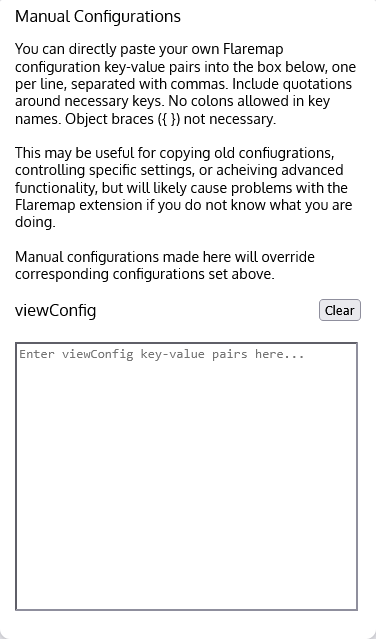
Advanced users may enter parameters for the viewConfig (Flaremap configuration JSON object). Establishing these parameters is described in the Flaremap Development Kit Technical Reference.
Manual configurations will be applied when the “Apply” button is clicked, along with other Flaremap settings modified in the Editor panel. Manual configurations will override settings made in the above controls in the Editor. If not being used, leave these input areas blank, or click the “Clear” button near each one to ensure they are empty, such that improper parameters don’t override other settings and cause the Flaremap to malfunction.