Flaremap Configuration
In the Visual Action Platform, Flaremaps are now creatable right through the interface!
Begin the configuration of your Flaremap by clicking the  (gear) icon in the upper right corner of the header.

Please note that some portions of this section on configuration include quick-reference tables at the end for users to quickly address what specific controls do. Read through the text if you need to learn how to perform an action within the Platform, or use the tables if you just need to quickly recall the function of a specific control.
Naming a Flaremap
A Flaremap can be named in the same way an Extension would be. Once you have opened the Flaremap configuration in the Editor panel, the first option will allow you to enter a name for the Flaremap.

Enter any desired name, then click out of the input box. The name will automatically update.
Creator Groups
There are many options to be created and configured when it comes to Flaremaps. Because of this, these options are categorized into smaller groups within the Editor panel.
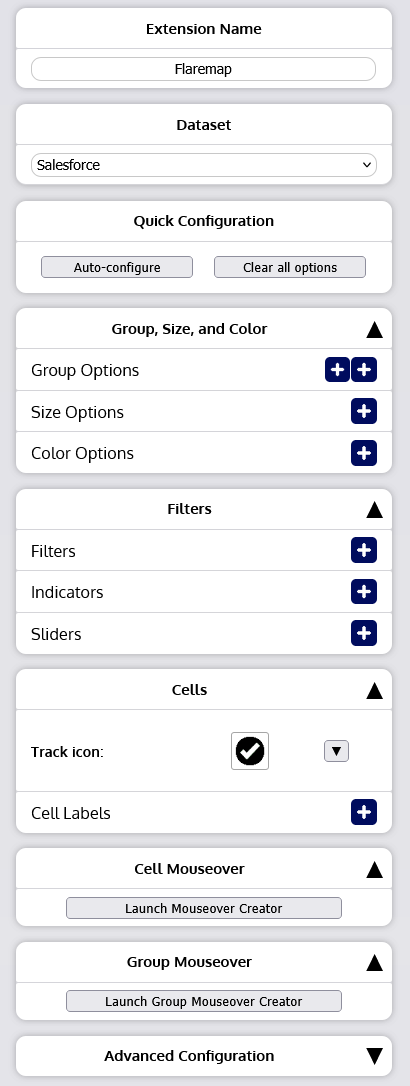
Each settings group may be collapsed and expanded. As the Editor panel fills up, it may be helpful to collapse a group to limit the need to scroll. Click the upper banner of a settings group to collapse it. The arrow at the right of the banner will reverse. Click the banner again to expand the group.
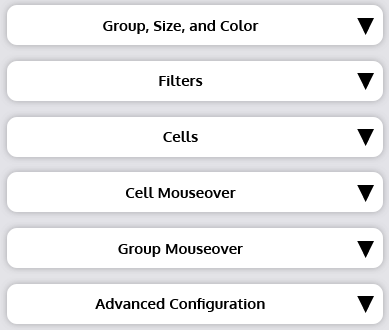
Group**, Size****, and Color**
Within this settings group, Flaremap group (and hierarchy), size, and color options may be created.
Filters
Within this settings group, each type of filter may be created.
Cells
This settings group is where cell-specific configurations are made. Cell Labels may be set up here.
Cell Mouseover
From this settings group, the Mouseover Creator for the respective Flaremap may be launched, using which the user can design a cell mouseover for the Flaremap.
Group Mouseover
From this settings group, the Group Mouseover Creator for the respective Flaremap may be launched, using which the user can design a group mouseover for the Flaremap.
Advanced Configuration
This group begins collapsed by default. This group contains advanced settings for configuring the Flaremap. This section should only be used by those experienced with creating Flaremaps in previous versions of Flaremap JS, or by advanced users who have thoroughly familiarized themselves with the Flaremap Development Kit Technical Reference.
Creator Cards
Each component you create within the Flaremap will appear in its own “card” within its settings group. These cards share some common characteristics.

Sort Handle
The ≡ (triple-bar or “hamburger”) icon in the upper left of a card indicates that the card can be dragged to sort. You may drag cards around to sort them and place them in the order you wish them to appear in the Flaremap options.
Default Toggle
A  (star) icon in the upper left of a card represents a toggle for making that option the default. There may only be one default for each type of option. For example, there is one default for groups, one for sizes, one for colors, etc. Selecting a default is not required. When you do select a default option, the star will fill (
 ).
).
Option Name
In the top center of every card is an input box for a corresponding option name. This is the visible name the option will be given when showing up in lists within the Flaremap interface.
All options require names. If an option name is left blank, it will automatically be given a name generated from and relative to the column of data selected for that option.
Delete Button
In the upper right of a card is an × button. Clicking this button will delete the option.
Quick-Reference Table
| Option | Description | Display |
|---|---|---|
| Sort Handle | Allows an option to be sorted for a particular position in the option list. | ≡ |
| Default Toggle | Toggles the default option for an option type. Only one per option type may be selected. |  Not set as Default Not set as Default Set as Default Set as Default |
| Option Name | Specifies the name of an option, which appears within the Flaremap interface. |  |
| Delete Button | Removes a created option. | × |
Creating Group Options
The first option you will see to create for your Flaremap is a group option.
Across from “Group Options,” to the right, you will see two + buttons. By default, these buttons look like this:  , but this can change depending on the theme/style selected for the application.
The left button creates a standard, single-level group option. The right button creates a hierarchy, or multi-level, group (within group) option.
Create group
Begin by clicking the left + button on the “Group Options” header. You will see a new group option card appear.
You can name the group option now, or wait until you select the column of data to group by to enter an appropriate name.
In the “Group by” dropdown, select the column of data you would like this option to group by. Recall that group options come from columns of data type TEXT|ENUM.
If you haven’t already, give the option an appropriate name.
Repeat this process for as many standard group options as you would like.
Create hierarchy
Begin by clicking the right + button on the “Group Options” header. You will see a new hierarchy option card appear, but this option will contain both “Group by” and “Then by.”

You can name the hierarchy option now, or wait until you select the columns of data to group by to enter an appropriate name.
In the “Group by” dropdown, select the column of data you would like this option to initially group by. This option will be the outermost group of the hierarchy. Recall that group options come from columns of data type TEXT|ENUM.
In the “Then by” dropdown, select the next column of data you would like this option to group by. This will be the first subgroup under the initial group you previously chose. Hierarchies must have at least one subgroup. To group by just one column of data, delete this option using the × in the upper right corner, then go to the previous section and create a regular group option.
To add more subgroups, click the “+ Add subgroup” button. This will add another “Then by” dropdown. Follow the procedure in the previous paragraph to create a further subgroup.

A hierarchy requires there to be a standard group option for each column used within the hierarchy. If you haven’t created a group option for one of the columns used in your hierarchy option, the Platform will automatically create one for you (and therefore, you will see it as a standard group option in your Flaremap and in the Flaremap’s settings next time you open the Editor panel).
Too many subgroups can quickly get messy within the Flaremap. You may want to test out how your hierarchy looks as you add layers by applying your changes one step at a time.
If you haven’t already, give the option an appropriate name.
Repeat this process for as many hierarchy group options as you would like.
An “All” group option, which contains all cells in a single, unified group, is automatically created and is always available. The “All” group option cannot be modified or removed.
Creating Size Options
The next option you will see to create for your Flaremap is a size option.

Begin by clicking the + button to the right of the “Size Options” header. You will see a new size option card appear.
You can name the size option now, or wait until you select the column of data to size by to enter an appropriate name.
In the “Size by” dropdown, select the column of data you would like this option to size by. Recall that size options come from columns of data type NUMBER.
If you haven’t already, give the option an appropriate name.
Repeat this process for as many size options as you would like.
A “Same Size” size option, which makes all cells the same size, is automatically created and is always available. The “Same Size” size option cannot be modified or removed.
Creating Color Options
The third option (the final option in the “Group, Size, and Color” creator group) you will see to create for your Flaremap is a color option.
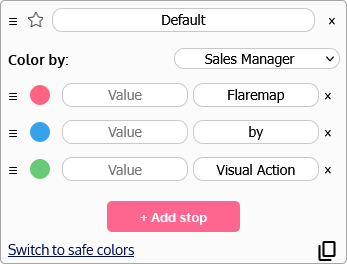
Begin by clicking the + button to the right of the “Color Options” header. You will see a new color option card appear.
You can name the color option now, or wait until you select the column of data to color by to enter an appropriate name.
In the “Color by” dropdown, select the column of data you would like this option to color by. Recall that color options can be used on both TEXT (including TEXT|ENUM) as well as NUMBER data types; however, the legend type (and therefore configuration) will be slightly different depending on the data type.
Color Spectrums for NUMBER Data Type
If you have chosen a numerical data column for your color option, you will enter numerical values as stops for colors, and this will create a spectrum.
Click “+ Add stop” to add a color stop. You will see a color stop creator line appear.

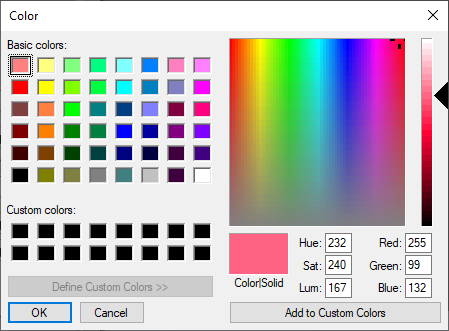
Click the color bubble to the left (the default color is black), then select the desired color for this stop.
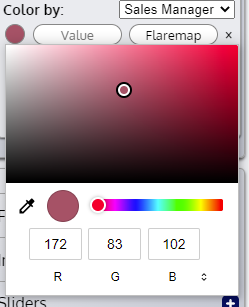
Mozilla Firefox
Google Chrome
Color-pickers are a feature of the browser, and thus the interface where you choose your colors may not look like the above examples.
Once you have chosen a color, click inside the input box that says “Value” (immediately to the right of the color bubble). Enter the numerical value that should correspond to this color on the spectrum.
Flaremaps will automatically create a gradient spectrum from the colors you enter. Enter the main colors you want used; there is no need to add dozens of colors to achieve a spectrum with a gradient.
Finally, click in the second input box (to the right), labeled “Legend Label.” Enter the text that you want displayed on the color spectrum while this color option is being used.
Try to keep labels short, as once you create many color stops, long names may start to overlap each other. Labels may be also be left blank to leave space in the spectrum.
Repeat this process for each color stop you want to add to the spectrum.
Color Legends for TEXT or TEXT|ENUM Data Type
If you have chosen a textual data column for your color by, you will enter text values as stops for colors, and this will create a legend.
Click “+ Add stop” to add a color stop. You will see a color stop creator line appear.
Click the color bubble to the left (the default color is black), then select the desired color for this stop.
Once you have chosen a color, click inside the input box that says “Value” (immediately to the right of the color bubble). Enter the text value that should correspond to this color on the spectrum.
Finally, click in the second input box (to the right), labeled “Legend Label.” Enter the text that you want displayed alongside this color in the legend while this color option is being used.
Repeat this process for each color stop you want to add to the legend.
Once you have added all the colors you need to your option, give the option an appropriate name, if you haven’t already.
Repeat this process for as many color options as you would like.
A “Default” color option is created when a Flaremap is first deployed. You may modify this option to make it one of your own color options, or simply delete it and create a new option of your own.
At least one color option must be present for the Flaremap to display, so be sure to enter at least one color option if you apply your settings and the Flaremap doesn’t show any cells.
Creating Color-safe (Colorblind) Options
The Visual Action Platform and Flaremap Development Kit support the creation of “color-safe” color options, which define alternative color spectrums and legends that assist those affected by different forms of colorblindness in interpreting Flaremaps appropriately.
Color-safe options can be defined for each color option that has been created. To switch to editing the color-safe version of a color option you’ve created, simply locate that option in the list, and click “Switch to safe colors.”

The color bubbles in the creator will change to show the colors selected for the color-safe option. By default, they are all black (if these aren’t changed, a color-safe option will be automatically generated; i.e.: the color-safe option will not be all black). You can now select colors to use for the color-safe version of this color option.
You do not need to change or modify the data column, values, or labels used when changing the color-safe colors.
Flaremaps will automatically apply color-safe options from a set of predefined legends if a custom color-safe option is not defined.
You can return to editing the standard color option by clicking “Switch to standard colors” while editing safe colors.

Duplicating a Color Option
If you want to reuse a color spectrum or legend that you’ve already created, without having to reselect each of the individual colors, color options can be easily duplicated.
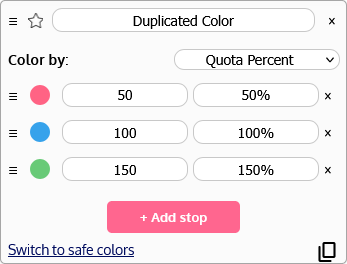
To duplicate a color option, click the  icon in the lower-right corner of the color option you’d like to duplicate.

A duplicate of the color option will be created and added to the end of the color options list. All of its parameters will be identical to the color you duplicated, except the name, which will be identified as “Duplicated Color.”
Creating (Standard) Filters
In the next creator group, “Filters,” the first option you will see to create for your Flaremap is “Filters.” These are the standard select filters.
Begin by clicking the + button to the right of the “Filters” header. You will see a new filter card appear.

You can name the filter now, or wait until you select the column of data to filter by to enter an appropriate name.
In the “Filter by” dropdown, select the column of data you would like this option to filter by. Recall that filter data options come from columns of data type TEXT|ENUM.
Why Only TEXT|ENUM for Filters?
Data columns that are TEXT|ENUM have repeated values, whereas TEXT columns tend to have mostly unique values. This is why TEXT|ENUM is used for group options.
Using TEXT columns for filters would likely result in the list of options for the filter being close to, if not exactly, as long as the list of rows in the data. In most cases, it’s illogical to use a filter in this way to locate a single, or perhaps a couple, cell(s).
Navigating to a single cell is much better done using the Search filter, as if the user already knows exactly which filter option(s) he or she would click on to find that single cell, that user could begin typing in the box. This is usually faster than scrolling through a large list of options as well.
In the “Select type” buttons, choose “Single” or “Multiple.” “Single” will create a dropdown that only lets one enumerated value (think of these as groups) from the chosen column be filtered by at a time. “Multiple” will enable multiple enumerated values to be filtered by at once.
If you chose “Multiple,” enter a value of at least 2 into the “List length” input box. This indicates how many options from the list you can see at any given time within the filter, without scrolling.
If you haven’t already, give the filter an appropriate name.
Repeat this process for as many filters as you would like.
Quick-Reference Table
| Option | Description | Accepted Values | Default Value |
|---|---|---|---|
| Filter by | The column of data associated with this filter. | Any column name presented in the dropdown list. | First option in the list |
| Select type | Determines whether one or multiple items from the list may be used to filter by at a time. | Single or multiple (radio buttons). | Multiple |
| List length | When a type of “Multiple” is used, indicates how many options are visible in the filter’s list without scrolling. When type is “Single,” option is hidden. | Any positive integer. | 5 |
Creating Indicators
The next option you will see to create for your Flaremap is “Indicators.”
Begin by clicking the + button to the right of the “Indicators” header. You will see a new indicator card appear.
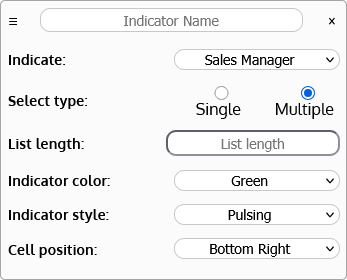
You can name the indicator now, or wait until you select the column of data to “indicate” (filter) by to enter an appropriate name.
In the “Indicate” dropdown, select the column of data you would like this option to trigger on (indicate). Recall that indicator data options come from columns of data type TEXT|ENUM, for the same reasons as described above for filters.
If you are looking for a way to track an individual cell or a few cells as they move around the Flaremap, you can use the “Track this cell” option in the mouseover menu after clicking on the cell you want to track.
In the “Select type” buttons, choose “Single” or “Multiple.” “Single” will create a dropdown that only lets one enumerated value (think of these as groups) from the chosen column be indicated at a time. “Multiple” will enable multiple enumerated values to be indicated at once.
If you chose “Multiple,” enter a value of at least 2 into the “List length” input box. This indicates how many options from the list you can see at any given time within the indicator, without scrolling.
In the “Indicator color” dropdown, choose the color you would like this indicator to display.
Choose a style from the “Indicator style” dropdown. “Static” will remain a solid color, “blinking” will alternate between a white flash and the chosen color, and “pulsing” will smoothly fade to white, then back to the chosen color.
Choose a position for the indicator to appear on the cell in the “Cell position” dropdown.
Indicators may not be positioned on the center of a cell. The center of a cell is used for markers when tracking cells.
If you haven’t already, give the indicator an appropriate name.
Repeat this process for as many indicators as you would like.
Quick-Reference Table
| Option | Description | Accepted Values | Default Value |
|---|---|---|---|
| Indicate | The column of data associated with this indicator. | Any column name presented in the dropdown list. | First option in the list |
| Select type | Determines whether one or multiple items from the list may be used to filter by at a time. | Single or multiple (radio buttons). | Multiple |
| List length | When a type of “Multiple” is used, indicates how many options are visible in the indicator’s list without scrolling. When type is “Single,” option is hidden. | Any positive integer. | 5 |
| Indicator color | The color of the indicator on the cell. | Any color presented in the dropdown list. | Green |
| Indicator style | The visual style of the indicator. | Any style presented in the dropdown list: • Solid: Solid color • Blinking: Blinking between chosen color and white • Pulsing: Smooth fade between chosen color and white | Pulsing |
| Cell position | The position on a cell where the indicator appears. | Any position presented in the dropdown list: • Top Left • Top Right • Bottom Right • Bottom Left • Top Center | Bottom Right |
Creating Sliders
The third option (the final option in the “Filters” creator group) you will see to create for your Flaremap is “Slider.”
Begin by clicking the + button to the right of the “Sliders” header. You will see a new slider card appear.
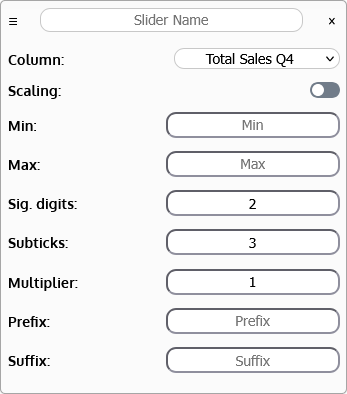
You can name the slider now, or wait until you select the column of data to filter by to enter an appropriate name.
In the “Column” dropdown, select the column of data you would like this option to filter by. Recall that slider data options come from columns of data type NUMBER.
Toggle “Scaling” if you want to scale the slider range. By default, slider ranges are linear. Enabling scaling will draw the first 25% of values over approximately the first 50% of the slider range.
If you want a custom minimum value for the slider range, enter that value in the “Min” input box. Leave this box blank if you want the minimum value from the data to be used.
If you want a custom maximum value for the slider range, enter that value in the “Max” input box. Leave this box blank if you want the maximum value from the data to be used.
In the “Sig. digits” input box, enter the number of decimal places (significant digits) you want to display in the slider labels. A value of 0 will round numbers to whole numbers. Significant digits only display if there are non-whole numbers in the data column selected.
“Subticks” indicates the number of minor ticks to be drawn on the slider range. Enter a custom number if you would like more ticks (and labels) to be drawn on the range.
If desired, enter a multiplier in the “Multiplier” input box. A multiplier will multiply all values by the entered number. This may be useful, for example, when creating a slider for very large numbers, especially in conjunction with prefixes and suffixes.
In the “Prefix” and “Suffix” inputs, enter any text you would like to appear before and after, respectively, each label on the slider. For example, when dealing with monetary values in the thousands, you may want to enter a prefix of “$” and a suffix of “K” (with a multiplier of 0.001). This (with the multiplier) would turn a value of 100,000 from the data into “$100K” on the slider range.
If you haven’t already, give the slider an appropriate name.
Repeat this process for as many sliders as you would like
Quick-Reference Table
| Option | Description | Accepted Values | Default Value |
|---|---|---|---|
| Column | The column of data associated with this slider. | Any column name presented in the dropdown list. | First option in the list |
| Scaling | Enables scaling of the slider range. When disabled, a linear scale is drawn. When enabled, the first 25% of values will be drawn across approximately the first 50% of the slider range. | Enabled or disabled (toggle). | Disabled |
| Min | The minimum value for the slider range. When blank, the minimum value from the selected data column is used. | Any number greater than the minimum within the data. | N/A |
| Max | The maximum value for the slider range. When blank, the maximum value from the selected data column is used. | Any number less than the maximum within the data. | N/A |
| Sig. digits | The number of significant digits (decimal places) to use after non-whole numbers. | Any non-negative integer. | 2 |
| Subticks | The number of subticks (and therefore labels) to include on the slider range. | Any positive integer. | 3 |
| Multiplier | A value to multiply slider values by. | Any number. | 1 |
| Prefix | Text to place before the value in a slider label. | Any text. | N/A |
| Suffix | Text to place after the value in a slider label. | Any text. | N/A |
Setting the Track Cell Icon
In the next creator group, “Cells,” the first option you will see is a control for setting the “track icon.”

When using Flaremaps, cells can be “tracked.” Tracked cells have a marker placed in their centers, which persists even when cells rearrange due to changed groups, sizes, colors, labels, and filters.
By default, the icon representing a tracked cell looks like this:  . This icon can be changed.
Click the dropdown arrow next to the current track icon (the one displayed). This will reveal a list of included track icons.
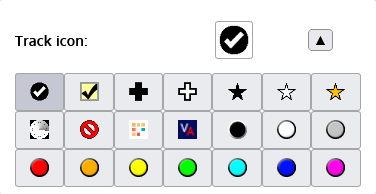
Select the icon you want to use for tracked cells from the available options. You will see the current track icon update to the icon you selected.
If you want to use a custom icon, click the “+ Add custom” button below the icon list to upload a custom icon. Once uploaded, select it from the list to use it.
Creating Cell Labels
In the “Cells” creator group, the second option you will see to create for your Flaremap is “Cell Labels.” These are the labels that go directly on top of cells.
Begin by clicking the + button to the right of the “Cell Labels” header. You will see a new cell label card appear.

Enter a name for the cell label option (this is not what will appear in the cells labels themselves, but rather the name of the option that will show up in the list of selectable cell label options).
In the “Cell contents” input area, enter the desired configuration for your cell labels.
Enter any text you want to appear in the cell label in the “Cell contents”. To insert a value corresponding to the cell’s data, use the dropdown to the right of “Insert value of” to select the column whose data you want in the cell label. Once you’ve selected a column, click “Insert,” and the Platform will insert the appropriate template into the “Cell contents” box.
You may also manually enter column data templates into the “Cell contents” box if you are familiar with the technical configuration parameters of Flaremaps (column name within curly braces { }, e.g.: {sales_rep} ). Remember to use the actual column name (key) in templates, rather than the alias created in the Data Manager. See the Flaremap Development Kit Technical Reference for more detailed information on cell label configuration.
You may enter text of your own in cell labels as well. For example, if you want to include an ID number (with a column name of “client_id” in the cell label, and also indicate that this is an ID, you could write:
Example: Client ID #: {client_id}
To make a line break and continue your label onto a new line, simply hit Return (or Enter) and continue writing on the next line.
See the Flaremap Development Kit Technical Reference for more detailed information on cell label configuration.
Repeat this process for as many cell label options as you would like.
Creating Cell Mouseovers
In the next creator group, “Cell Mouseover,” you are able to launch the Mouseover Creator to create custom cell mouseover boxes.
To launch the Mouseover Creator, click “Launch Mouseover Creator”.

This will open the Mouseover Creator, a special Extension that can only be opened while editing a Flaremap. Only one Mouseover Creator per Flaremap may be open at a time.
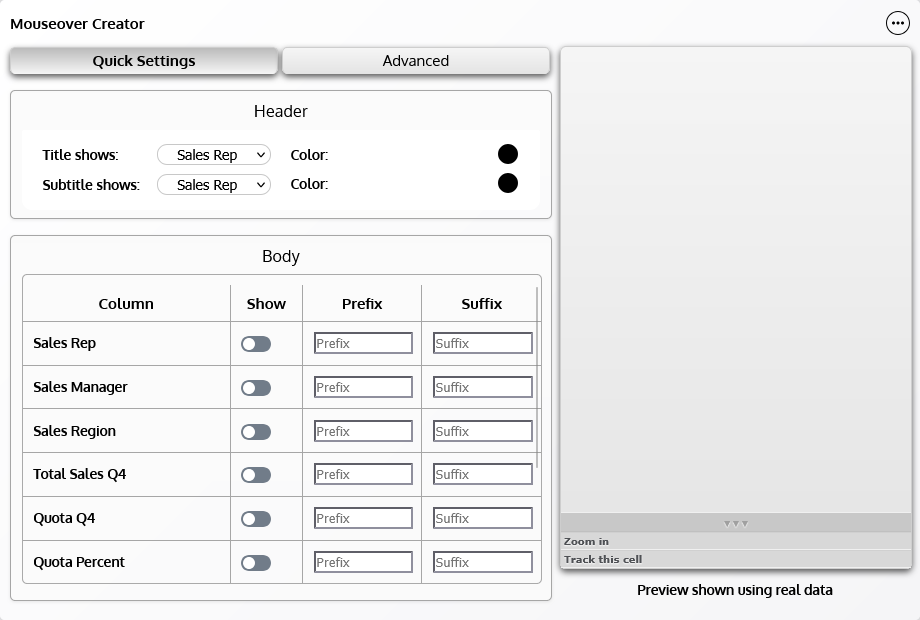
There are three main components to the Mouseover Creator: the designer tabs, the composer, and the previewer.
Designer Tabs
The Mouseover Creator’s designer tabs appear at the top left of the Extension. These tabs allow you to toggle between using the “Quick Settings” creator, for quickly generating a useful mouseover box, and the “Advanced” creator, which allows much more control and customization over the contents of the cell mouseover.

Composer
The Composer section of the Mouseover Creator is comprised of the entire space beneath the Designer Tabs on the left of the Extension. This area populates with the controls used for creating a mouseover, depending on the Designer Tab which is currently selected.
Previewer
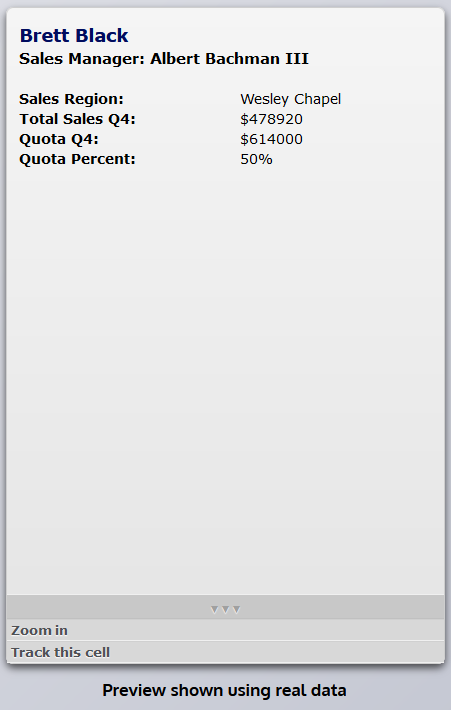
The Previewer of the Mouseover Creator is shown to the right of the Extension and resembles a mouseover box which would appear over the actual Flaremap. This previewer is always present and updates as you edit to display a sample of what your current mouseover design will look like.

The previewer includes mouseover menu items at the bottom to represent the menu that will appear in the actual mouseover box. The menu and its items within the preview do not perform any actions, and menu items cannot be edited.
The following sections will describe how to use both the Quick Settings and Advanced options to create a mouseover box using the Mouseover Creator.
Quick Settings
The Quick Settings version of the composer provides a quick and easy way to create a useful cell mouseover without having control over several details.
Header
The “Header” section of the Quick Settings composer is where the title and subtitle shown in the mouseover can be selected.
The title of the mouseover box is the largest text which appears topmost in the mouseover box. It is often filled with a unique identifier for a cell (such as its value in the Primary Key column of the data).
To select a title, choose the column from which you want data shown in the “Title shows” dropdown.

To change the color of the title, use the “Color” bubble to the right of the “Title shows” option to select a color.

The subtitle of a mouseover box appears directly beneath the title and shows a piece of data that is also relevant to the cell. It is not necessarily unique.
To select a subtitle, choose the column from which you want data shown in the “Subtitle shows” dropdown.

To change the color of the subtitle, use the “Color” bubble to the right of the “Subtitle shows” option to select a color.

The Previewer will automatically update as you make changes to display your mouseover.

Body
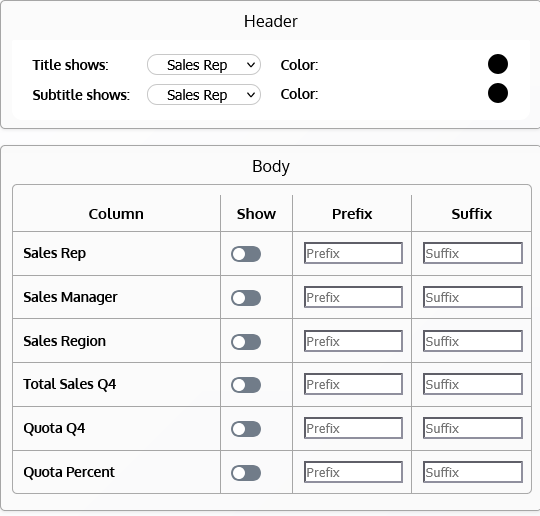
The “Body” section of the Quick Settings composer is where you can choose which data from a cell is displayed inside the mouseover box.
The “Body” section will automatically be populated with a row for each column in the dataset to which the Flaremap is linked. There are 4 columns shown in this table:
- Column: identifies the column from the data being represented
- Show: indicates whether to show data from that column
- Prefix: text which is displayed before that column’s value(s)
- Suffix: text which is displayed after that column’s value(s)
For each column you want displayed in the mouseover box, toggle the “Show” switch on. If you want text displayed before or after that column’s values in the mouseover box, enter that text accordingly into the “Prefix” and “Suffix” input fields.
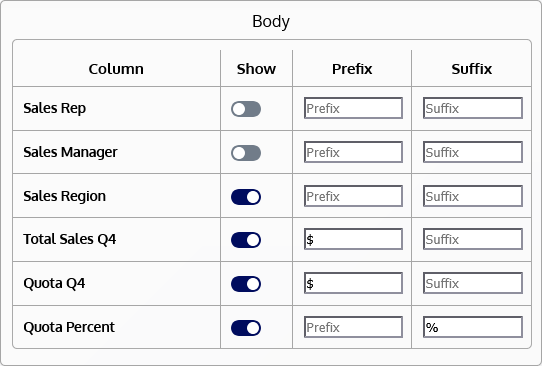
Once you’ve finished, your mouseover box will be shown in the Previewer.
Advanced
The Advanced version of the Mouseover Creator composer provides several additional controls for creating and customizing components of your cell mouseover.
The topmost component of the Advanced composer is where you can select the type of element to insert into the mouseover box. There are four options:
- Title: a title element (single value with no label)
- Table entry: a single value with a label
- Empty table row: a blank space
- Image: an image
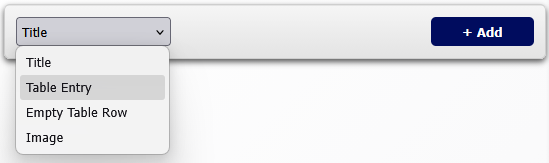
Select the item you want to create from the dropdown list, then click “+ Add” to add it to the mouseover box.
You will see a creator for the item type you selected appear in the composer. Each type will be described in detail below, but each creator shares some common controls.

Sort Handle
The ≡ (triple-bar or “hamburger”) icon in the upper left of a creator can be used to drag and sort the order of items in the mouseover.
Item Type
In the top center of a creator, the type of item which it represents is shown.
Delete Button
In the upper right of a creator is an × button. Clicking this button will delete the item and remove it from the mouseover.
Each of the item types you can add to the cell mouseover in the Advanced composer are described below:
Title
A title element shows a single value with no label. You can adjust the data shown in a title, as well as enter a prefix and suffix and change its color, font size, and alignment.
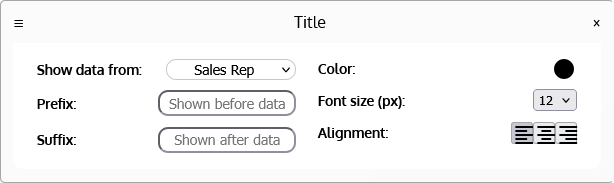
Table Entry
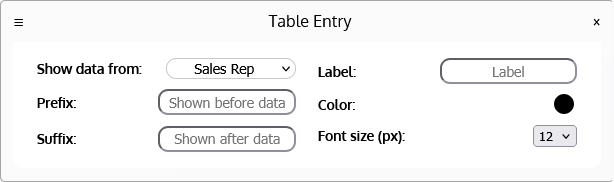
A table entry is similar to a title in that it shows a single value and its prefix, suffix, color, and font size can be changed. A table entry, however, contains a label which can be customized, and is always left-aligned.
Empty Table Row
An empty table row creator allows you to specify a number of empty rows which may be used to separate sections of information in your mouseover box.

Image
An image creator allows you to enter a URL to an image, which will be displayed in your mouseover box.

Use the different creator types to design and customize your mouseover to meet your specific needs. The Previewer will continually update to reflect the changes you make in your design.
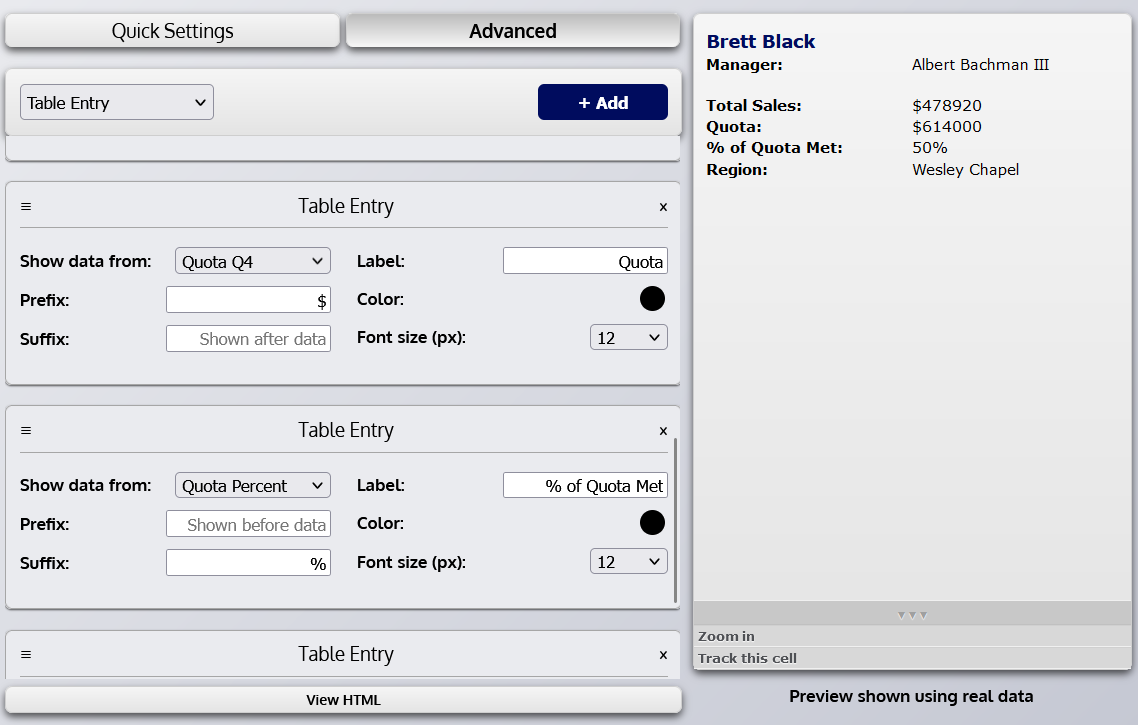
Some users may want to view the HTML generated when designing a mouseover, either for use in other (Flaremap Development Kit) applications or to modify manually to customize even further.
To view and edit the HTML of your mouseover, while in the Advanced composer, click the “View HTML” button at the bottom of the composer. This will reveal the HTML editor. You may edit the HTML manually here. To return to the composer, click the “Hide HTML” button beneath the code editor, or click the tab for the composer you want to use.
Any edits made using the composer after editing the HTML manually will override those manual edits.
Applying Cell Mouseovers
Once you’ve completed designing your cell mouseover using either of the available composers, click the “Apply” button in the Flaremap’s settings to apply the changes (and your cell mouseover) to the Flaremap. Hover over cells in the Flaremap to see your mouseover.
You can relaunch the Mouseover Creator to continue designing or to change your cell mouseover at any time.
Creating Group Mouseovers
In the next creator group, “Group Mouseover,” you are able to launch the Group Mouseover Creator to create custom group mouseover boxes.
To launch the Group Mouseover Creator, click “Launch Group Mouseover Creator”.

This will open the Group Mouseover Creator, another special Extension that can only be opened while editing a Flaremap. Only one Group Mouseover Creator per Flaremap may be open at a time.
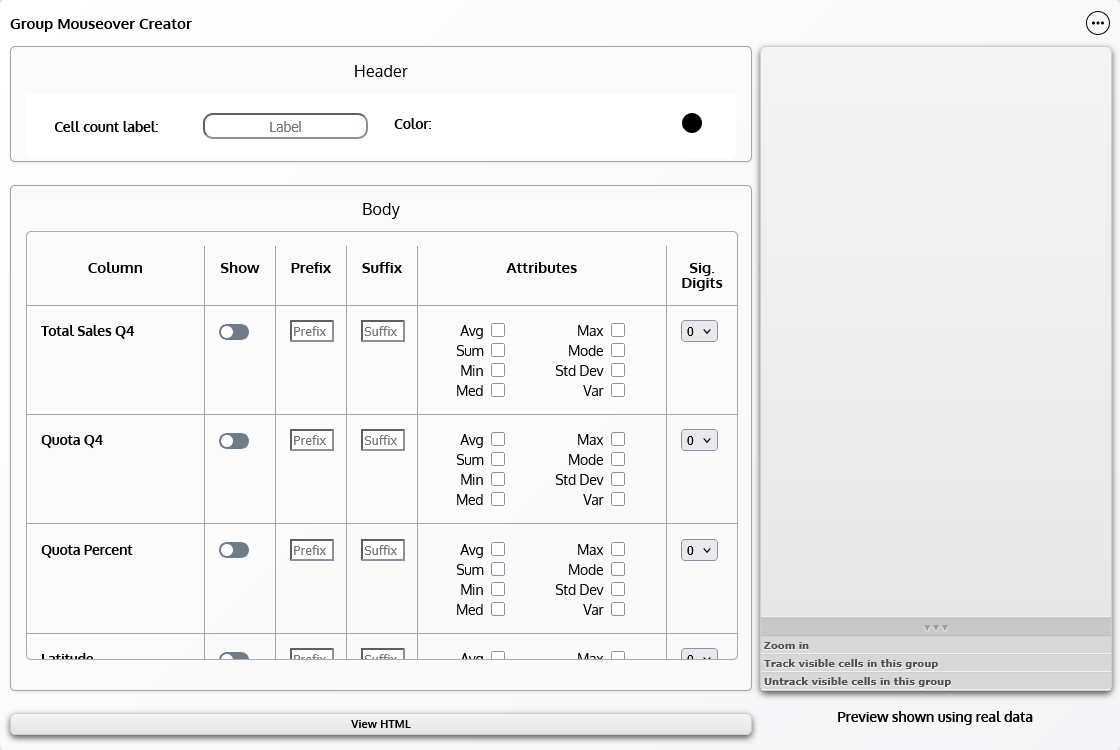
There are two main components to the Group Mouseover Creator: the composer and the previewer.
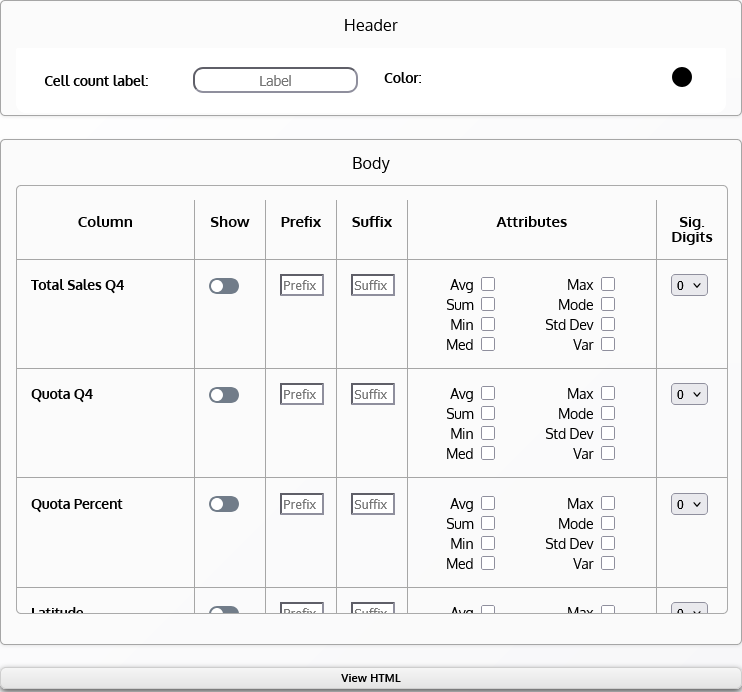
Composer
The Composer section of the Group Mouseover Creator fills the left portion of the Extension. This area populates with the controls used for creating a group mouseover.
Previewer
The Previewer of the Group Mouseover Creator is shown to the right of the Extension and resembles a group mouseover box which would appear over the actual Flaremap. This previewer is always present and updates as you edit to display a sample of what your current group mouseover design will look like.
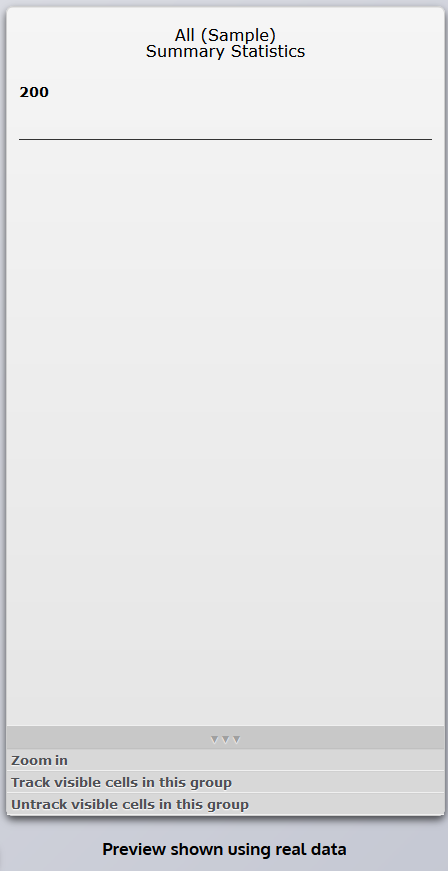
The previewer includes group mouseover menu items at the bottom to represent the menu that will appear in the actual group mouseover box. The menu and its items within the preview do not perform any actions, and menu items cannot be edited.
The following sections describe how to use the Group Mouseover Creator to produce a group mouseover.
Header
The “Header” section of the composer is where the cell count label and its color can be selected. The title of a group mouseover is automatically generated based on the group’s name.
The cell count label refers to the label used to identify the quantity of cells within a group. Each group mouseover displays the total number of cells within that group, and cells represent records from the data. For example, if your cells represent sales representatives, you might use the words “sales reps” as your cell count label. Then, when a group mouseover is displayed, it will display something like “200 sales reps”.
Enter your desired cell count label in the “Cell count label” input field. To change its color, use the “Color” bubble to the right of the “Cell count label” input field.

Body
The “Body” section of the composer is where you can choose which aggregate data from a group is displayed.
The “Body” section will automatically be populated with a row for each column of numerical data in the dataset which the Flaremap is linked to. There are 6 columns shown in this table:
- Column: identifies the column from the data which is being represented
- Show: indicates whether to show data from that column
- Prefix: text which is displayed before that column’s value(s)
- Suffix: text which is displayed after that column’s value(s)
- Attributes: indicates which aggregate attributes to display in the table
- Sig. Digits: indicates how many decimal places should be shown after values
For each numerical column whose aggregate attributes you want displayed in the group mouseover box, toggle the “Show” switch on. If you want text displayed before or after that column’s values in the mouseover box, enter that text accordingly into the “Prefix” and “Suffix” input fields.
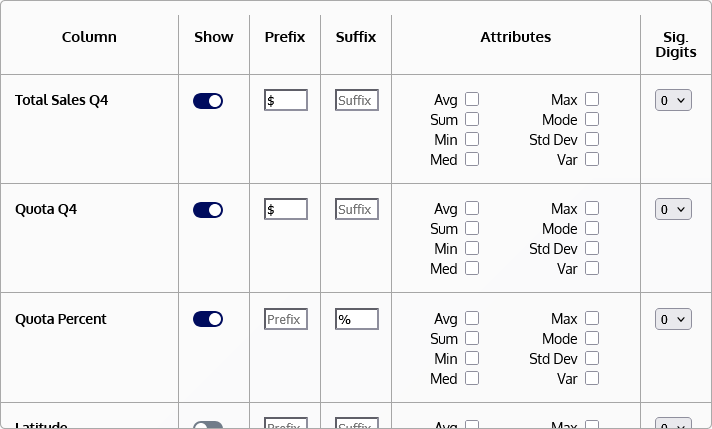
For each column you’ve selected, you can choose which aggregate attributes should be displayed in the group mouseover box’s table. Aggregate attributes are calculated from the set of values in a column across each cell in a group. There are 8 available attributes:
- Sum: sum
- Avg: average/mean
- Min: minimum
- Med: median
- Max: maximum
- Mode: mode
- Std Dev: standard deviation
- Var: variance
Check the box for each attribute you want displayed for each column. Use the “Sig. Digits” dropdown to limit the number of digits following the decimal point in attribute values.
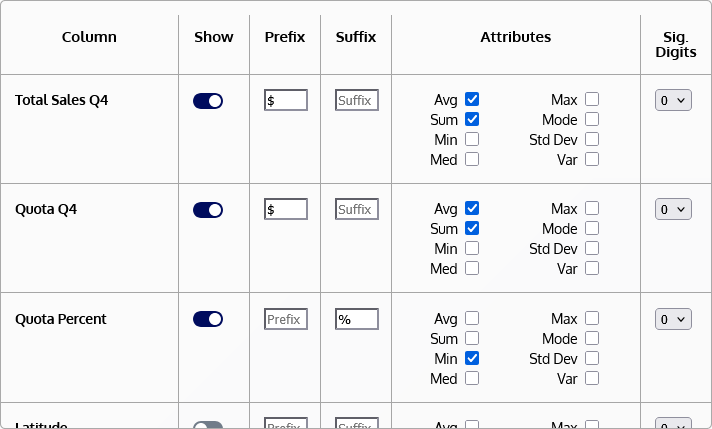
Once you’ve finished, your group mouseover box will be shown in the Previewer.
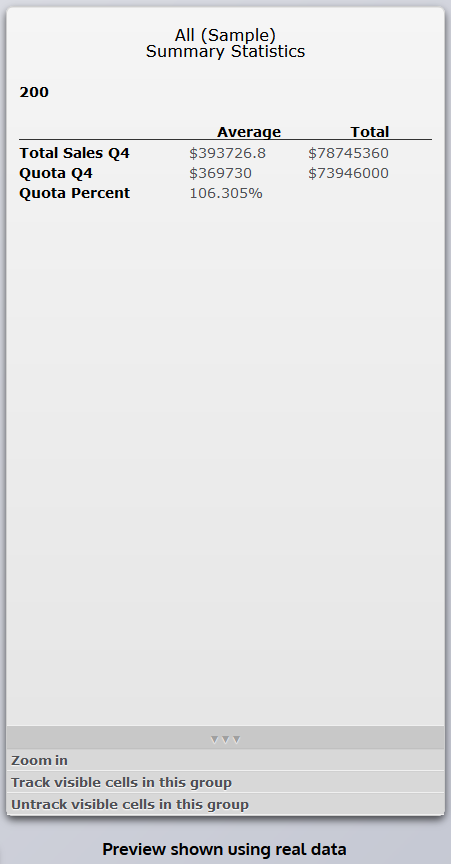
Some users may want to view the HTML generated when designing a group mouseover, either for use in other (Flaremap Development Kit) applications or to modify manually to customize even further.
To view and edit the HTML of your group mouseover, look towards the bottom left of the composer to find the “View HTML” button and click it. This will reveal the HTML editor. You may edit the HTML manually here. To return to the composer, click the “Hide HTML” button beneath the code editor.
Any edits made using the composer after editing the HTML manually will override those manual edits.
Applying Group Mouseovers
Once you’ve completed designing your group mouseover using the composer, click the “Apply” button in the Flaremap’s settings to apply the changes (and your group mouseover) to the Flaremap. Hover over groups in the Flaremap to see your group mouseover.
You can relaunch the Mouseover Creator to continue designing or to change your group mouseover at any time.
8.4.14 Creating Presets
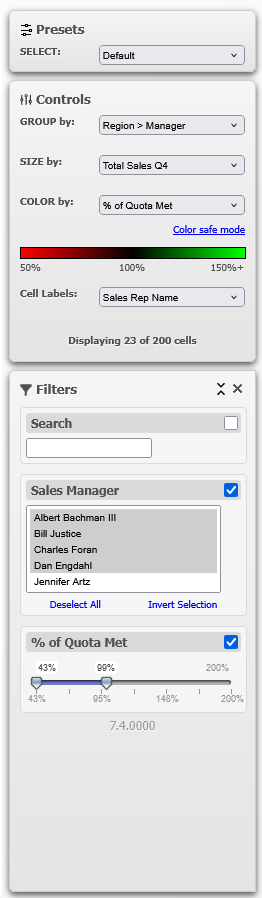
Creating a Flaremap preset is a fast and efficient way to reorient the Flaremap to particular set of options that achieve a specific goal. Flaremap presets apply a pre-configured set of selections (group, size, color, cell labels, and filters) to the Flaremap with a single click. Presets are often built around use cases, allowing users to quickly toggle the Flaremap’s options to drive out qualifying anomalies, but can be used for many other tasks.
Configuring a Preset
To create a Flaremap preset, first select the Flaremap options which should be applied in that preset (see example to the right).
- Select the group option to apply.
- Select the size option to apply.
- Select the color option to apply.
- Select a cell label option to apply, if any.
- Enable and adjust all filters to apply, if any.
Saving a Preset
Once you’ve selected all of the Flaremap options to be applied by a preset, locate the Flaremap Presets toggle in the Flaremap (Extension) header. The presets toggle looks like this:  .
.

Click the presets toggle. The Flaremap Presets menu will open.
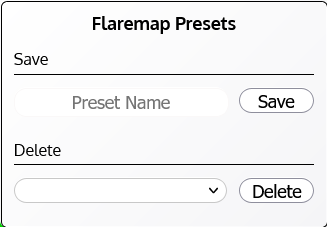
Under “Save”, in the input field that says “Preset Name”, enter a name to assign to the preset. Each preset name must be unique. A preset may not be named “Default”.
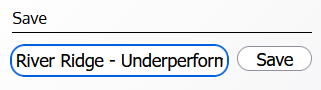
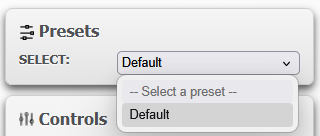
Once a qualifying name has been entered, click the “Save” button. The Flaremap will update, and the preset you just created will now be available in the “Presets” control panel within the Flaremap.
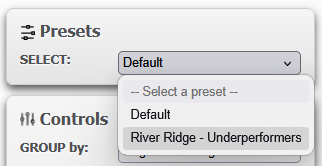
Simply select your preset from the list to apply it. Select “Default” to revert the Flaremap to its default options. Presets can be toggled between at any time.
Repeat this process for as many Flaremap Presets as necessary. There is no limit on the number of presets that can be configured for a Flaremap.
Flaremap Presets are associated with only a single Flaremap. To create an identical preset for another Flaremap, it must be created again within that Flaremap.
Deleting a Preset
To delete a Flaremap Preset, first open the Flaremap Presets menu using the preset toggle (described above in “Saving a Preset”).
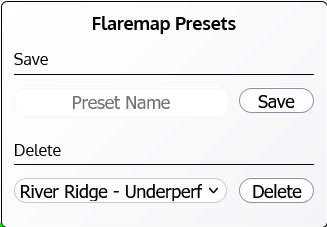
In the dropdown under “Delete”, locate and select the preset you want to delete. Once selected, click the “Delete” button to remove it.
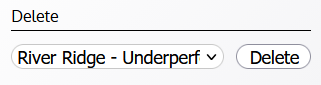
The Flaremap will update, and the deleted preset will no longer be an available option in the Flaremap’s "Presets” control panel.
Saving Settings
Once you have configured your Flaremap, click the “Apply” button at the bottom of the Editor to immediately apply your changes to the Flaremap. You will receive a notification that the settings were successfully applied, and you will see the Flaremap update immediately.

You can apply changes frequently throughout your creation of a Flaremap to test options out. There is no need to fully configure every portion of the Flaremap before applying changes.