Flaremap Components
There are three main components to the Flaremap interface: the Flaremap field, controls, and filters, as well as some additional utilities.
Flaremap Field
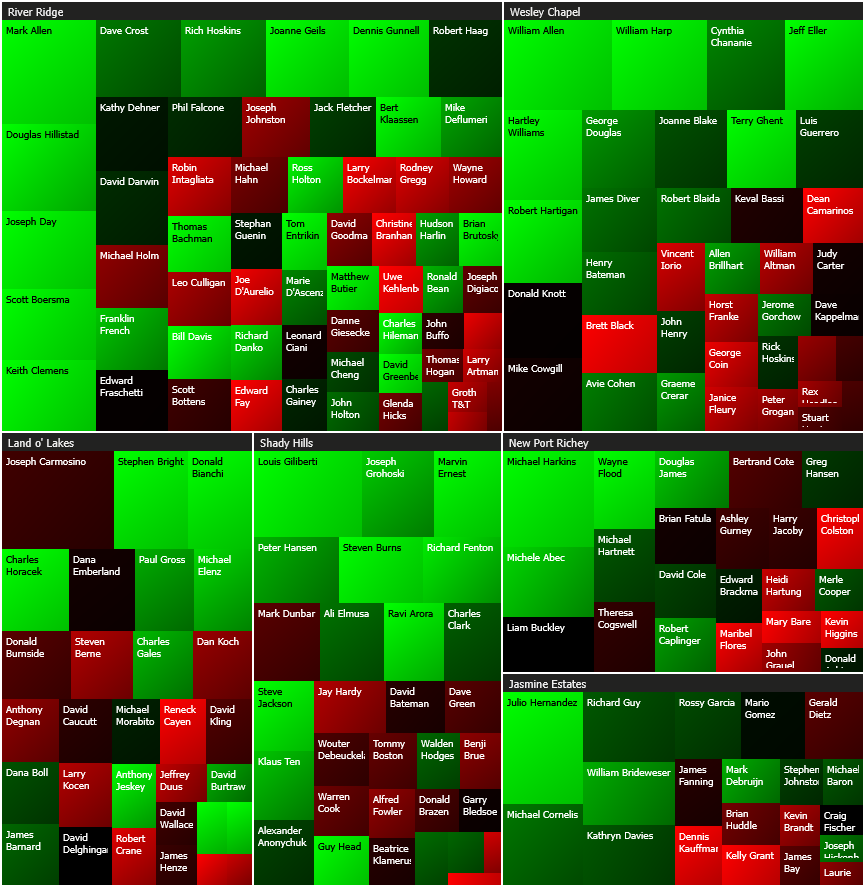
The Flaremap field covers most of a Flaremap’s interface, visualizing data using the methodology of a treemap.
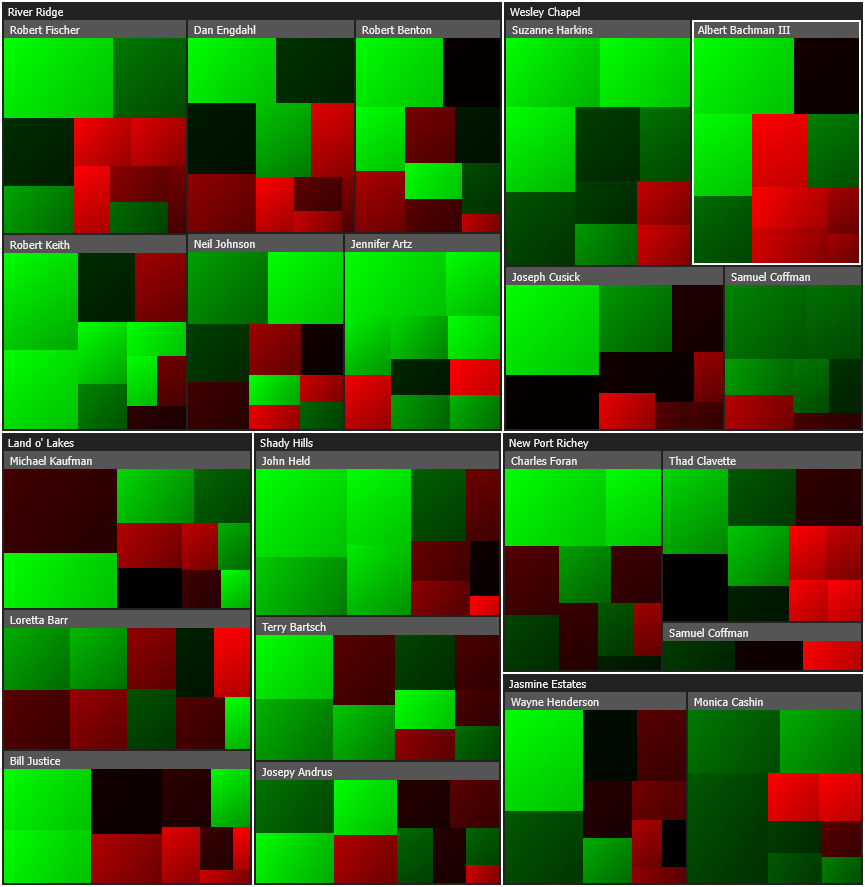
Flaremaps use cells to represent data from the connected data source, with each cell representing a record (row) from the data. The Flaremap field is where all of these cells are displayed.
Presets
The Presets panel appears to the upper-right of the Flaremap field, just above the Controls panel. This panel presents Flaremap Presets – preconfigured combinations of group, size, color, label, and filter selections – that have been created, and allows you to select and apply them.

Controls
The Controls panel appears to the upper-right of the Flaremap field (just beneath the Presets panel). This panel is where you can switch between options for grouping, sizing, and coloring cells to quickly drive the information you need to the surface. This panel also contains controls for toggling cell labels.
GROUP by
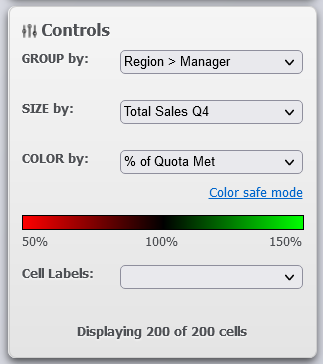
The “GROUP by” dropdown allows the user to select which option for grouping the cells is used. Groups are driven by (text) values that are shared across multiple rows of data.

Grouping in Flaremaps also includes hierarchies, or “groups within groups.” Groups may be created based on multiple data columns, and cells will be sub-grouped based on each selection.
SIZE by
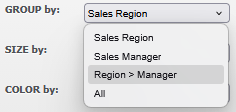
The “SIZE by” dropdown allows the user to select which option is used to size the cells. Sizes are driven by numerical values in the data.
COLOR by
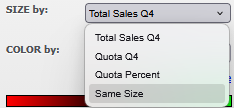
The “COLOR by” dropdown allows the user to select which option is used to color the cells. Colors may be driven by both numerical data (spectrum) or text data (legend).


Each color by option is accompanied by either a spectrum or legend – respective to the data type of the column being used to color by – beneath the “COLOR by” dropdown. This is where the user can see what each color represents.
Beneath the “COLOR by” dropdown is a toggle labeled “Color safe mode.” Color safe mode is a feature that automatically alters colors to assist colorblind users in seeing the Flaremap properly. Click this button to toggle color safe mode. To exit this mode, click the button again, which will now say “Standard mode.”
Cell Labels
The “Cell Labels” dropdown allows the user to select what data, if any, is displayed directly on the cells themselves.

Cell Display Count
At the bottom of the Controls panel, there is a count of the cells displayed on the Flaremap. This automatically updates when filtering to indicate how many cells are visible out of the total number of cells in the data at any given time. It will initially show that all cells are visible.


Filters
The Filters panel appears to the lower-right of the Flaremap field. Filters do just that – filter (hide or display) cells based on various rules or combinations of rules. Filtering is a powerful and fast way to narrow down data into an applicable subset.
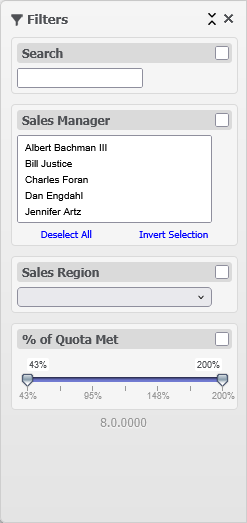
There are three main types of filters (and one special type):
Filters
Basic filters, known as just “filters” or “select filters,” display only the cells that match a certain value within the associated data column.

Filters can be individual, meaning only one value to filter by may be selected from a dropdown, or multiple, meaning that multiple values can be selected to filter to all cells which match any of the selections. These types can be distinguished on the interface by looking for a dropdown (individual) versus a list containing at least two visible items (multiple).
To select multiple items within a multiple-select filter, hold Ctrl while clicking each item. Use the “Deselect All” button at the bottom of the filter to deselect every option in that filter. Use the “Invert Selection” button to invert which options are selected in that filter (i.e.: swap all selected and deselected options).
Indicators
Indicators provide a way to “filter” items with a visual cue. Similar to basic filters, there are individual and multiple modes of indicators. The difference is that the cells matching the criteria of the selected items in an indicator will have a visible beacon placed on top of them. This is opposed to the previous type of filter, which actually hides the cells that don’t match any of the selected criteria.


Indicators come in various styles, which can be set in the Flaremap configuration. See section 8.4.8 Creating Indicators to learn how to adjust these styles.
Sliders
Sliders provide a way of accurately filtering numerical data. Unlike the other two filter types, sliders provide – you guessed it – a range slider that can be adjusted to a specific range.

When a slider’s range is adjusted, the cells will be filtered to display only the cells whose data (for that slider’s selected column) falls within the selected range.
Search
There is one special type of filter that is always present in the Filters panel, whether you create more filters or not. This filter is a “Search” filter.

When you configure your Flaremap, the Search filter will automatically be configured to search any text columns in the data. This filter is always present and may not be removed. You cannot create additional Search filters, as the default one will cover all searchable columns.
Use the Search filter to quickly find a specific cell or set of cells with an identifiable piece of information by typing into the input box within the filter. The Flaremap will automatically filter cells as you type. Once the software can no longer find any cells with matching data, the Flaremap will indicate that “No results match your criteria.”
Filters are each represented within their own box inside the Filters panel. When you add a filter in the Flaremap configuration and apply changes, you will see them automatically populate themselves in this panel (the default Flaremap will begin with an almost empty Filters panel).
Each individual filter may be collapsed by clicking on its header (title bar). Expand the filter again when needed by clicking again on the filter’s header.

When you click inside a filter to use it, the filter will automatically be enabled. This can be seen by the checkbox in the upper-right corner of the filter automatically becoming checked.

You can disable a filter without deselecting your options or adjusting your parameters by unchecking this box. This saves users from having to reselect items or reset a slider range when toggling between using a filter and not using it. It enables users to quickly switch between which filters are currently applied.
In the upper right of the Filters panel, you will notice two buttons: a “Collapse All” button ( ) and a “Deselect All” button (×).

Collapse/Expand All
The “Collapse All” button () will collapse all filters within the Filters panel. This is helpful in Flaremaps with many filters, as it keeps filters in a smaller form, allowing the user to expand only the relevant filters at any given time.
Likewise, after collapsing all filters, this button will change to an “Expand All” ( ) button. Clicking this button will do the opposite, opening up all filters within the Filters panel.
Deselect All
The “Deselect All” button (×) will uncheck (disable) all filters which are currently active. This allows users to quickly turn off all filters and restore the full dataset to the Flaremap field.
This is different from the “Deselect All” seen at the bottom of multiple-select filters and indicators, which only deselects all selected options within that specific filter.
Mouseover Boxes
Flaremap mouseover boxes (or simply “mouseovers”) drill-down into the data composing a cell or group to provide detailed information and aggregate statistics.
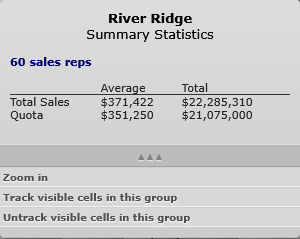
Mouseovers appear when hovering over a cell or a group on the Flaremap field. There are two types of mouseover boxes: cell and group mouseovers.
Cell Mouseovers
Cell mouseovers provide specific attributes about the data record a cell represents.

Group Mouseovers
Group mouseovers provide aggregate details and statistics about a group of cells and all of the cells that comprise that group.
Header Controls
As mentioned previously, the Flaremap shares many controls and capabilities with Workflow Extensions. This includes the controls in its element’s header.
For Flaremaps, however, four new controls are introduced: “Flaremap Presets”, “Import Flaremap Configuration”, “Export Flaremap Configuration”, and “Export Filtered Data”.
 Flaremap Presets
The Flaremap Presets window is what allows you to save and delete different Flaremap preset options (saved selections of group, size, color, cell label, and filter options) when editing an application. These presets become available for quick application in the Flaremap.
 Import Flaremap Configuration
The  (upload) icon in the Flaremap element’s header provides an option for users to upload a Flaremap configuration file. This allows users coming from older versions of the software (Flaremap JS 6.9 and below) to upload and import their existing Flaremap configurations, such that they may continue with the same Flaremap they were already using without having to recreate it. Users will be able to immediately use the Flaremap as-is, or use the new and improved controls of the Platform to edit their existing configuration further.
When importing a Flaremap configuration file from another application or from the Flaremap Development Kit, it is important to ensure that the file is formatted correctly. The Platform will attempt to cleanse the file of some contents that are not allowed, but you should check the file and perform the following before importing:
- Remove JavaScript comments from the file, both single-line “//” and multi-line (“/* */”)
- Remove the jQuery onload call (“$(function(){“) and all of its contents
- Remove the variable definition outside the JSON (i.e.: “var viewConfig = “)
 Export Flaremap Configuration
The  (download) icon in the Flaremap element’s header allows the user to export and save the Flaremap’s current configuration file in developer format. This allows users to use the Platform to build and design Flaremaps and subsequently use that Flaremap in existing applications built in older versions of Flaremap JS or in embedded Flaremaps being developed using the Flaremap Development Kit.
The Flaremap configuration file output from the Platform is suitable for use in embedded Flaremaps and other applications, but will not contain custom items such as developer comments or custom functions that run on page load.
 Export Filtered Data
Most data management within the Platform is done via the Data Manager interface. Some users, however, may want to export the subset of filtered data they have arrived at using the Flaremap for other purposes.
Clicking the (export filtered data) button will export only the filtered (visible) cells’ data from the selected Flaremap to a CSV file.