Deploying a Flaremap
Flaremaps, while a core component of the Platform, are nicely contained within the Workflow Drawer alongside Workflow Extensions. This makes them easy to access and deploy in the same way you would a Workflow Extension.
Before adding a Flaremap, be sure you have added a Data Object. If you have not yet added a Data Object, see section 7.5 Connecting to Data to learn how to do so.
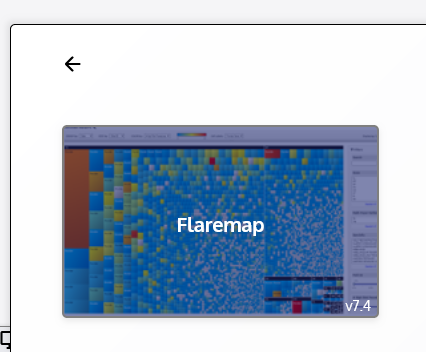
To deploy a Flaremap, open the Workflow Drawer, choose the “Flaremap” suite, and click and drag a “Flaremap” out onto the Desktop.
A Flaremap element within an application shares many of the same dynamic features and controls as Workflow Extensions, including the ability to be moved and resized, as well as the ability to be locked and collapsed.
Move and size the Flaremap as you would with any Workflow Extension. Once ready, continue on to learn about the components of a Flaremap and how to configure them within the application environment.