General
Some interface elements are consistent throughout all of the Platform (excepting a few pages), helping to provide a clear and consistent navigation experience.
Navigation Panel (Navbar)
The Navigation Panel, or Navbar, features quick access to the main areas of the Platform. It is available on most pages, so you don’t have to return Home to navigate to a new part of the Platform.
The Navbar remains mostly hidden by default, so that maximum space is available on the screen when you are not navigating between pages. It is always positioned to the left side of the page, with a small slice of it visible.
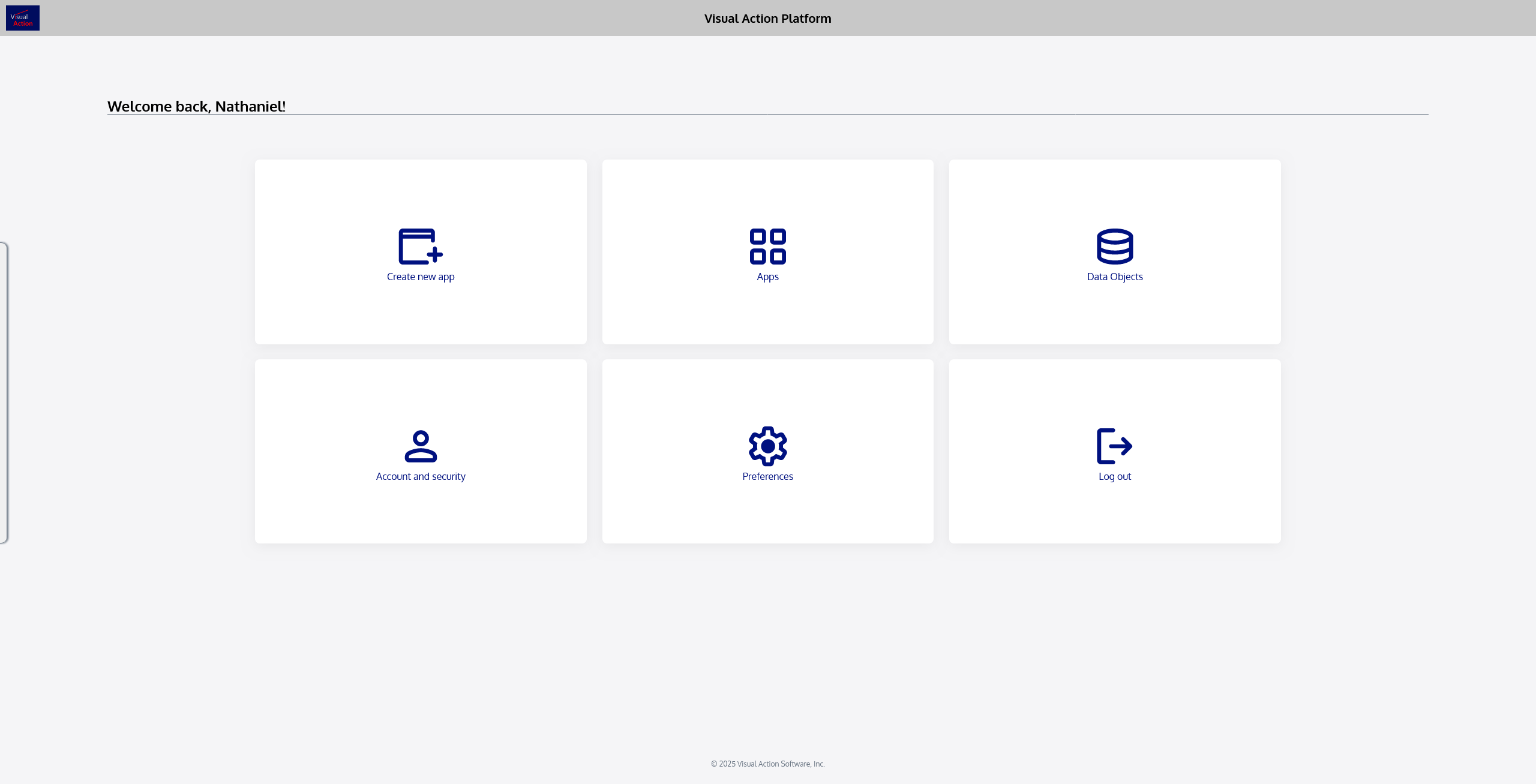

To view the Navbar, simply hover the mouse cursor over the visible edge of it on left side of the screen. The Navbar will slide out and appear fully.

There are several actions that can be taken from the Navbar. They are:
 | Returns you to your Home page. |
|---|---|
 | Brings you to your Apps page, where you can see all apps you own, apps that have been shared with you, and create new apps. |
 | Brings you to your Data Objects page, where you can see all Data Objects you own or have access to, and where you can create new Data Objects. |
 | Displays your profile page, where you can view and update personal information and security settings. |
 | Logs you out of the Visual Action Platform. |
 | Directs you to the Visual Action Platform documentation for assistance. |
 | Takes you to the Visual Action website. |