My Data Objects
Endpoint URL: /data/
The “My Data Objects” page displays all of the Data Objects you have available for use in your applications. It shows all Data Objects you can use, whether they are owned by you or shared with you.
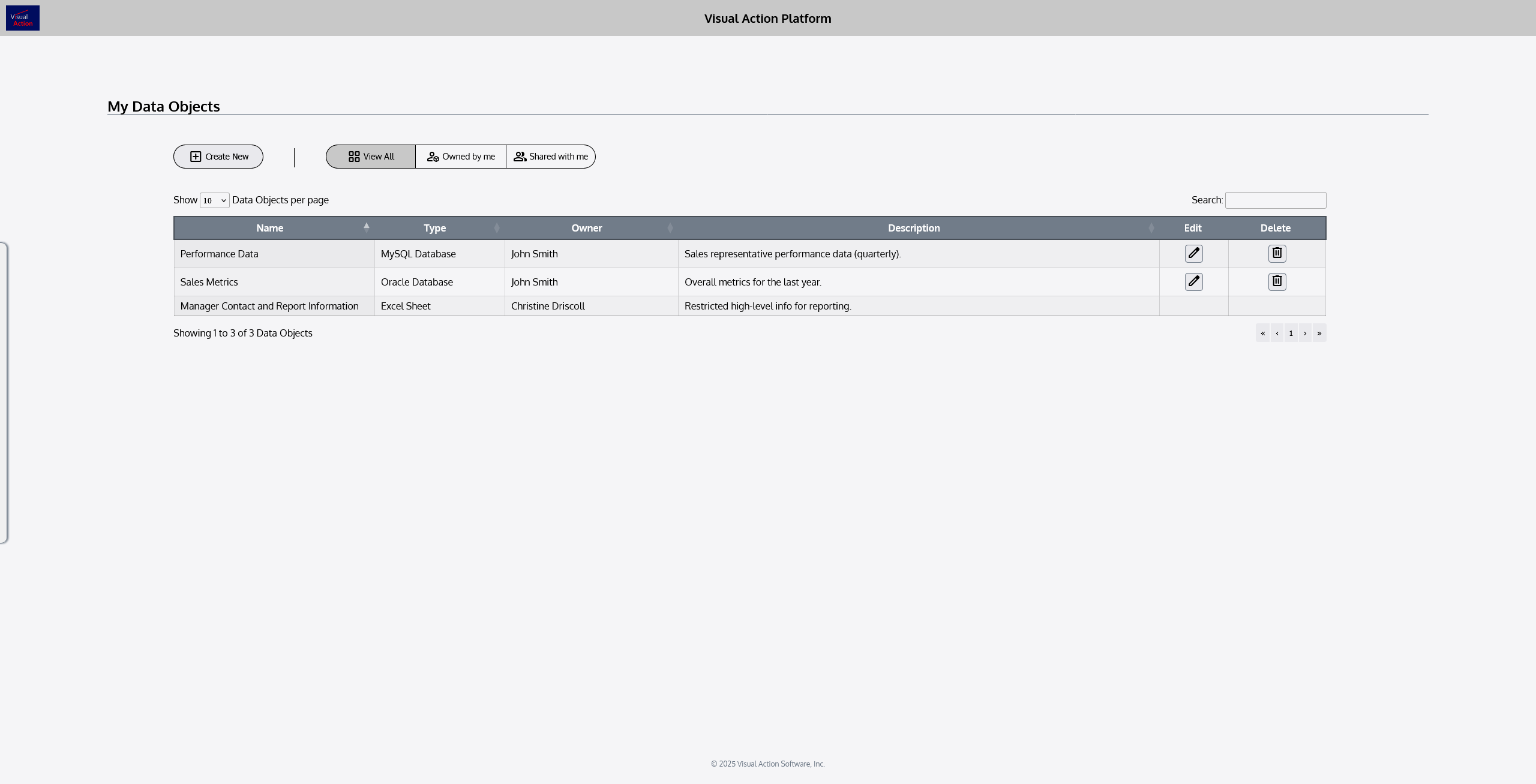
Beneath the title of the page (“Data Objects”), there are some controls:
 | Selecting this button begins the process of creating and configuring a new Data Object. |
|---|---|
 | Filter #1: View All This filter displays all of your Data Objects on the screen, including both Data Objects you own and Data Objects that are shared with you. |
 | Filter #2: Owned by me This filter displays only Data Objects that you own. |
 | Filter #3: Shared with me This filter displays only Data Objects shared with you (owned by others). |
In the main body of the page, your Data Objects will be displayed according to the filter selection that is applied. By default, “View All” is selected, but if you are having trouble finding a Data Object, check that it isn’t being filtered out.

Each Data Object you can use will be displayed in a row in the Data Objects table:

Each row card displays six main components:
Name
The name given to the Data Object within the Platform.
Type
The source type of the original data source, which the Data Object connects to. For example, a Data Object that shows “Google Sheet” gets its source data from a Google Sheets spreadsheet.
Ownership Details
The name of the owner (creator) of the Data Object. Note that this does not necessarily reflect the “owner” of the source data.
Description
A short set of details about the Data Object.
 Edit Button
Allows you to edit the Data Object and its settings.
 Delete Button
Allows you to delete the Data Object.
It’s important to note that Edit and Delete buttons only appear when you have the appropriate permissions to perform these actions.
For example, if another user shared a Data Object with you, but only gave you permission to use it in your apps (not to edit it), you will not see an Edit button. But, if you were granted edit access, you will see the Edit button.
Only the owner of a Data Object is allowed to delete it, so you will not see this option on any Data Objects shared with you.