Menu
The Menu provides access to all of the environment’s controls. For many overarching functions and settings within the application environment, the Menu is the place to begin.
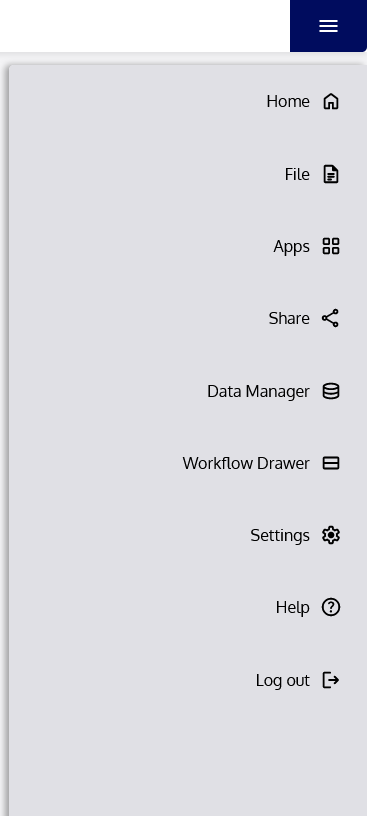
To open the Menu, click the Menu button ( ☰ ) in the upper right of the Navbar.
Menu Items
Once opened, the Menu contains many options. The table below describes each of those options.
| Menu Item | Description | ||
|---|---|---|---|
| Dropdown Item | |||
 | Home | Returns you to the Platform Home page. | |
 | File | ↆ | Reveals options related to saving and creating applications. |
 | Save | Saves the application in its current state. | |
 | New | Creates a new application and opens it in the application environment. | |
 | Apps | ↆ | Reveals options related to your applications, including the currently open app. |
 | My Apps | Returns you to your My Apps page. | |
 | Clear | Clears (resets) the current application (all application data will be lost). | |
 | Share | Opens the sharing menu for sharing the current application. | |
 | Data Manager | Opens the Data Manager utility, where Data Objects and data connections can be created, edited, and managed. | |
 | Workflow Drawer | Toggles the Workflow Extension Drawer. This is an alternative to the pull-tab of the Drawer at the bottom of the screen. | |
 | Settings | Opens the application’s Settings and Preferences in the Editor. | |
 | Help | ↆ | Links to resources for finding information and assistance with using the Platform. |
 | User Guide | Opens an online PDF of the most current software documentation. | |
 | Contact Us | Takes you to www.visualaction.com/contact, where you can contact us for help. | |
 | Log out | Logs the current user out of the Platform. |