Workflow Drawer
The Workflow Drawer houses all of the Workflow Extensions available for use within an application. The Workflow Drawer is the hub from which a user begins creating the interactive components of an application.

When designing an application, a user may select whichever Extensions are preferred from the Workflow Drawer to use within the application. There is no limit on the number of Extensions a user may add to an application, but it’s important to keep in mind the usability of an application when deploying a large number of Extensions. Too many Extensions packed into a single interface may make it difficult to navigate an application. Try making multiple apps!
Opening and Closing
There are multiple ways to access the Workflow Drawer from within the application environment:
Pull Tab
While editing an application, a small pull tab is always present at the bottom of the Desktop, in the center:

Clicking on this tab opens the Workflow Drawer. When the Drawer is open, clicking this tab will close the Drawer.
Menu
The Workflow Drawer can be toggled from within the Menu as well. Open the Menu and select “Workflow Drawer” (see section 6.4 Menu).
Shortcut
The Workflow Drawer can also be toggled using the keyboard shortcut Ctrl + Alt + E. See section 6.8.3 Keyboard Shortcuts (Keybinds) for more keyboard shortcuts.
The Workflow Drawer can always be closed by clicking the  button in the upper right corner of the Drawer when it is open.

The Workflow Drawer will automatically close after deploying a Workflow Extension or when another panel, such as the Editor, is opened.
The Workflow Drawer is disabled when applications are being actively used in view mode or when they are published, meaning the above options for accessing it are also disabled. The pull tab will be hidden.
Navigating the Drawer
Once opened, the Workflow Drawer will present all of the Workflow Suites which are available to the user. Workflow Suites are available if there is at least one Extension within that Suite.
Begin by clicking on the Suite relevant to the type of Workflow Extension you need. For example, to add a Flaremap, click on the “Flaremap” Suite; to add a bar chart, click on the “Charting” Suite.
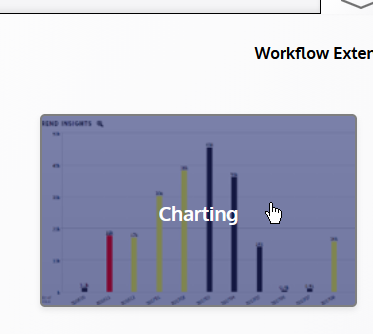
Once a Suite has been selected, the Workflow Drawer will populate with all of the available Workflow Extensions within that Suite.

Deploying Extensions
Once the Drawer has been populated with the contents of a Workflow Suite, locate the Extension you would like to add to the application. Once located, click and drag the Extension’s card out of the Drawer and onto the Desktop environment. A “ghost” instance of the card will follow your mouse as you drag, indicating that the card has been grabbed. Move the cursor to a place relatively near where you would like the Extension to be, then release the mouse button. Upon releasing, a new instance of the selected Extension will be deployed to the interface.
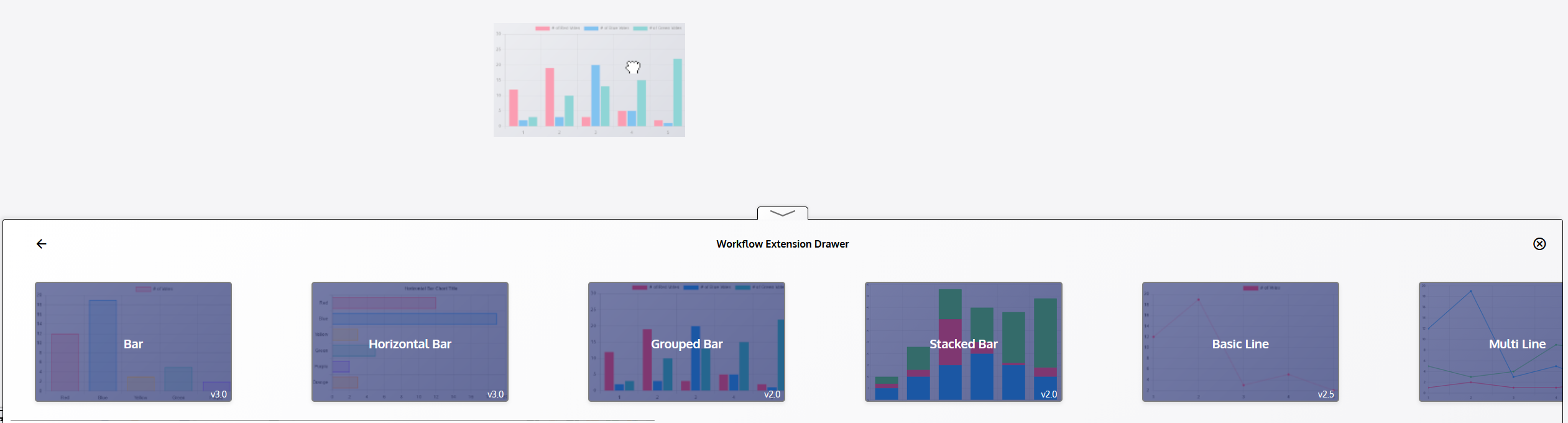
Once deployed, the new Extension can be arranged and sized to best fit the interface as desired.
Getting More Extensions
In the Workflow Drawer, while looking at the available Suites of Workflow Extensions, a card titled “+ Get More Extensions” will always be available at the end of the row. Click this card, or manually navigate to www.visualaction.com/contact/ to contact Visual Action about obtaining more Extensions. The “Contact Us” option under the “Help” option in the Menu will also take you to this page.