Desktop
The Desktop is a large, open area on the screen in which a user may design and use an application. Some users may begin with a Desktop that has been preconfigured, while others beginning with a brand-new application will see a blank slate.
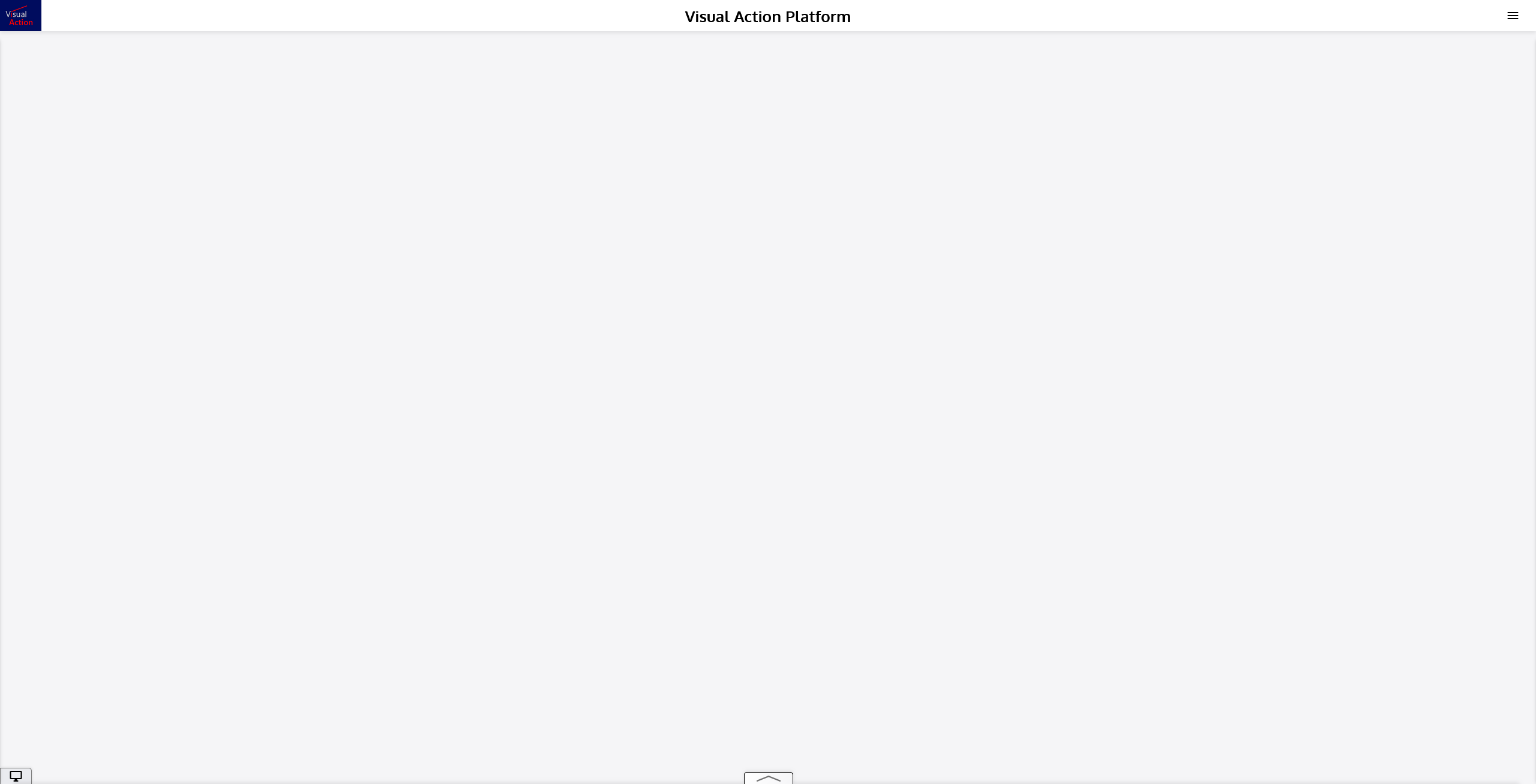
The graphic above shows an empty Desktop environment. All modifiable elements of an application that may be interacted with by a user will be laid out within this Desktop area. These elements are automatically contained within the usable Desktop environment; there is no need for the user to worry about designing an application with unreachable elements.
A single application may contain up to 5 different Desktops (application pages). See section 6.7 Page Manager) for more details.
Interactions
Elements within the Desktop are interactive, allowing users to design and configure an application to their own specifications.
Dragging
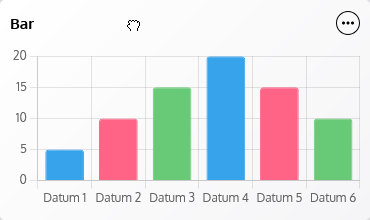
Elements added to the Desktop can be moved freely by clicking and holding on the extension header (upper ribbon). Upon clicking and holding, a grabbing cursor will appear, meaning the element can be dragged to the desired location. Releasing the mouse will leave the element placed in its new location.
Resizing
Elements on the Desktop can also be freely resized. Resizable elements are indicated by the appearance of the  symbol in the lower-right corner of an element when it is hovered over. While hovering over the outer edges of an element, directional arrows will appear, indicating in which direction(s) the element may be resized from that edge. When these arrows appear, clicking and dragging (without releasing the mouse) allows the user to transform the element to the desired shape and size in the applicable direction. Releasing the mouse will leave the element with its new size and shape.
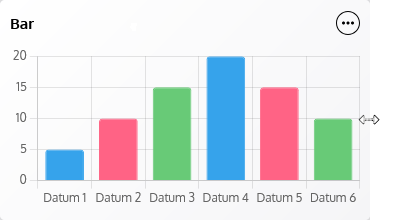
The edges of an element allow it to be resized horizontally (left or right edge) or vertically (top or bottom) only. Corners allow the element to be resized in both directions simultaneously.
See section 7.7 Adding, Placing, Collapsing, and Removing Extensions7.8 Configuring Flaremaps and Extensions for more details on all of the dynamic interactions and controls of elements and Workflow Extensions on the Desktop.