Editor
The Editor panel is the most dynamic and interactive panel in the application environment. The Editor changes to include the modifiable settings for almost any editable component of an application, including Workflow Extensions, Application Settings, and User Preferences.
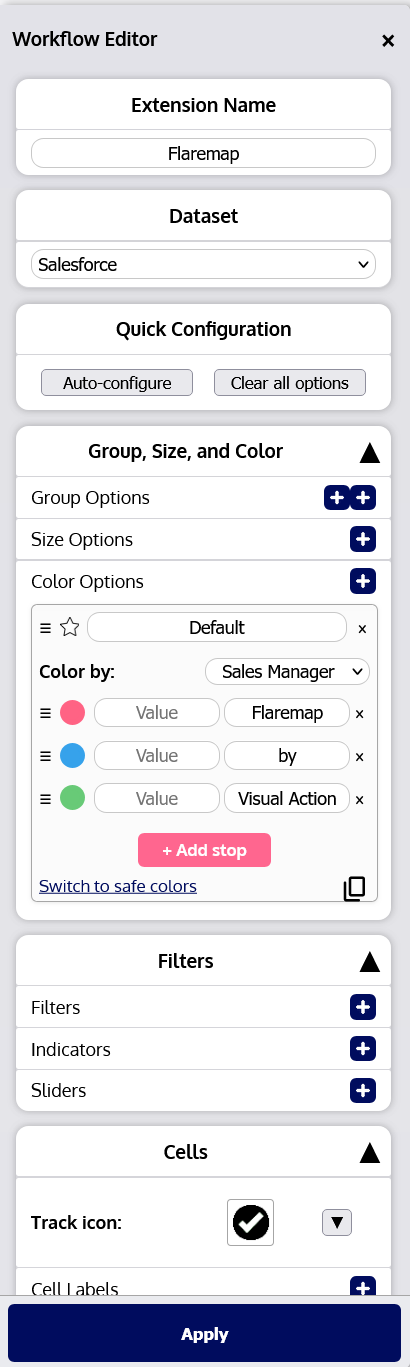
The Editor appears on the left edge of the screen. When clicking on a button that opens the settings for an application component, the Editor will automatically open to reveal the appropriate settings. The Editor can be closed by clicking the × button in the upper right corner. The Editor will automatically close if a conflicting panel, such as the Workflow Drawer, is opened.
Workflow Extension Settings
Workflow Extension settings are likely what will be edited most often within the Editor. Each Workflow Extension developed within the Visual Action Platform, excluding a few special Extensions, has user-controlled settings that allow the user to make the Extension look, feel, and function as desired. An individual Extension’s settings may be accessed by clicking the gear icon  in the upper right corner of the Extension. This icon will appear after opening the Extension’s controls using the more
  button.


After clicking an Extension’s settings (gear) icon, the Editor panel will open and/or update to reflect all of the available settings for that Extension which the user may modify. Except for a select few Extensions, the first setting will always be the Extension Name (the title shown within the header of the Extension).

If the Extension has many settings, the panel will allow the user to scroll down to see all of the available options.
An “Apply” button is fixed at the bottom of the Editor panel. After making desired changes to an Extension’s configuration, click this “Apply” button to execute the changes. The Workflow Extension whose settings are being modified will automatically update itself with its new settings.

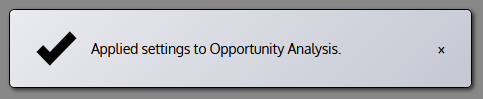
Certain settings changes may cause no visible changes to an Extension, and it therefore may be difficult to recognize that an Extension was successfully updated. A notification should appear in the bottom right corner of the interface indicating that an Extension’s settings have been successfully updated.
There is no “Apply” button when adjusting application settings and preferences. See the next section for more information.
Application Settings and Preferences
There are many settings and preferences for each application that may be controlled by the user. These can be accessed via the Menu by clicking “Settings and Preferences.”
Once clicked, the Editor panel will open with all of the available options which a user may control. The user may make any desired changes; changes are automatically saved. There is no need to press an “Apply” button, as there is with Extension settings.
See section 7.6 Adjusting Settings and Preferences7.6 Adjusting Settings and Preferences for further information on the available application settings and user preferences.