Advanced References
There are several advanced features of the application environment that are not critical components of basic application-building, but which can significantly enhance the look and performance of your applications.
Custom Themes
The application environment enables you to modify the styling of the page to create a custom theme for your application. While there are two themes included (a light and a dark theme), custom changes are often desired to personalize and improve applications.
There are two ways to apply a custom theme to your application. First, open the Application Settings panel from the Menu or by using the keyboard shortcut Ctrl + Alt + S. Under the “Look and Feel” section, find “Theme”, and select “Custom.” You will see two input options appear.
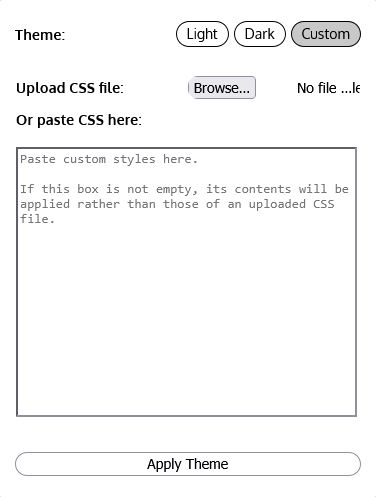
Upload CSS file
The first option for applying your custom theme is to upload a CSS file. Many developers or designers find it easier to write and edit their CSS in an external editor. This option allows those users to write and edit their CSS styles in a different editor, saving it as a CSS file. Then, the CSS file can simply be uploaded into the application, and the styles from the file will be applied.
Simply click “Browse” to locate your CSS file. Select the file you have your custom theme in, then click “Open”. Click the “Apply Theme” button to apply the styles from your file.
Note that the custom CSS input area (described in the next section) takes precedence. If any custom CSS is pasted in the input area below the file upload, those styles will be applied rather than those from the uploaded file.
Paste CSS
As another option, allowing easy pasting and live editing of styles within the application environment, you may also paste in the custom theme styles you want to apply in the box beneath “Or paste CSS here:”. Simply paste your CSS styles in and click the “Apply Theme” button to apply the styles. This input box takes precedence over an uploaded file. You can edit the contents of this box and apply changes to test how a styling change will look in your application.

Hint: You can begin be uploading a custom CSS file using the first option, then refresh the “Application Settings” Editor panel by closing and reopening it. The styles copied from your CSS file will now appear in the input box for pasting styles. You can use this method to begin with a CSS file, but then live edit the styles to meet your needs directly within the interface!
Hint: You can use this custom CSS section to add global styles or other styles that you use in custom mouseovers and Extensions as well; it doesn’t have to be limited to the overall application theme!
The next section includes the custom styling technical reference, guiding you as to which CSS variables, classes, and IDs should be modified to achieve specific results with your custom styling.
Custom Styling Technical Reference
To enable custom themes, the Visual Action Platform makes use of CSS variables whose names are exposed to the user. You can modify the values of these variables to apply custom styling to your application.
Below is a table referencing each accessible variable and the application element it affects. For reading clarity, the preceding dashes in CSS variable names are excluded from this table, but keep in mind that the naming format for CSS variables requires that all variables begin with two dashes, for example: --my-color-variable.
Referencing other CSS variables (of the appropriate type) within a variable is permitted and should work properly within the Platform.
Almost all variables applying to Platform styles should be included within the :root selector. Place all of your styling inside the :root selector, like this:
:root {
/* All custom styling goes here */
}
The appropriate selector will be indicated for any styles that do not belong within the :root selector.
Custom Styling Reference Table
| Variable | Applies To | Value Type |
|---|---|---|
| Theme Styles These style attributes apply to the overall theme, and are applied by default to multiple elements. Used these variables to apply a theme to the entire application. | ||
| background | The default background color used in the theme. | Color |
| foreground | The default foreground color used in the theme. | Color |
| foreground2 | The alternative foreground color to use for the theme when a different foreground from --foreground is needed. | Color |
| foreground-gradient | A gradient to use for foreground items. | Color (linear-gradient) |
| foreground-gradient-invert | An inverted version of --foreground-gradient. | Color (linear-gradient) |
| shadow | The default color for the box shadow of elements. | Color |
| color-primary | The primary theme color. Used automatically to theme elements without custom-styling each component. | Color |
| color-secondary | The secondary theme color. Used automatically to theme elements without custom-styling each component. | Color |
| color-tertiary | The tertiary theme color. Used automatically to theme elements without custom-styling each component. | Color |
| color-primary-pressed | The “pressed” version of --color-primary, used when a button of the primary theme color is clicked/pressed. | Color |
| font-color-primary | The primary font color of the theme. Used for most text by default. | Color |
| font-color-secondary | The secondary font color of the theme. Used where an alternative to --font-color-primary is needed. | Color |
| filter-bw | A filter to apply to black-and-white icons used throughout the application. Can be switched to appropriately invert icons when a light/dark theme is used, respectively. | CSS3 invert filter |
| Individual Element Styles These styles apply to specific, individual elements of the application. Use these variables to customize specific pieces of the application, rather than affect all elements using the above theme styles. | ||
| desktop-background-color | The background color of the Desktop (interface where Flaremap and Extensions are deployed). | Color |
| workflow-drawer-color | The color of text in the Workflow Drawer. | Color |
| workflow-drawer-background-color | The background color of the Workflow Drawer. | Color |
| workflow-drawer-tab-color | The color of the arrows in the Workflow Drawer pull tab. | Color |
| workflow-drawer-tab-background-color | The background color of the Workflow Drawer pull tab. | Color |
| editor-panel-font-color | The color of the text in the Editor Panel. | Color |
| editor-panel-background-color | The background color of the Editor Panel. | Color |
| extension-font-color | The color of text in a Workflow Extension. This typically only affects the Extension header, and rarely effects content in the body of Extensions, which usually has its own style rules. | Color |
| extension-background | The background style of Workflow Extensions. | Color |