Reporting
The application environment features a built-in Reporting Engine to assist users in generating distribution-ready reports dynamically from the analyses they performed during a session.
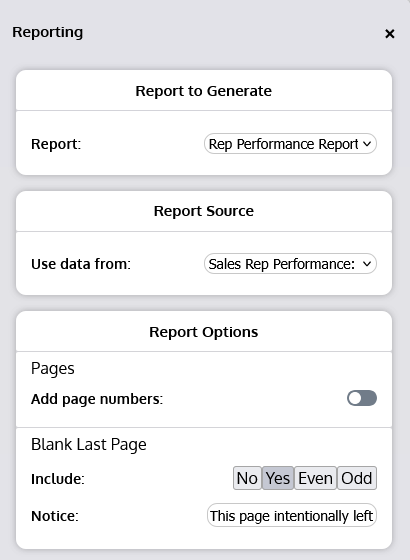
To open the Reporting Manager, open the Menu and select “Reporting” or use the keyboard shortcut (see section 6.8.3 Keyboard Shortcuts (Keybinds)6.8.3 Keyboard Shortcuts (Keybinds)).
Report to Generate
The first option in the Reporting Manager falls under “Report to Generate,” and is where the specific report to generate is chosen. Reports which are available to generate are driven by report logic that is included in the Logic Layer. To learn more about how to assemble and link report logic so that reports can be automatically generated, see section 7-A.4 Report Logic.
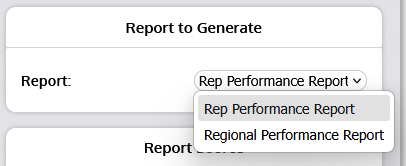
In the dropdown to the right of “Report,” any reports that are available to be generated will be listed. Select the appropriate report title from this list to choose which report to generate.
Report Source
The Report Source section in the Reporting Manager identifies which collection of data within the interface should be included in the report. This is how a user can select which analyzed data points should be reported on.
There are three primary sources of report data:
- Flaremaps: build report from currently displayed cells or from tracked cells
- Selection Portfolios: build report from items (cells) added to the portfolio
- Data Objects: build report from all rows in a dataset
Users can select which information to report on, depending on how their analysis was tracked (filtering out cells, tracking cells, adding cells to a portfolio, etc.).
Each available source of report data will appear under its corresponding group (see above source types) in the dropdown labeled “Use data from”. Select the source you want to use from this dropdown.
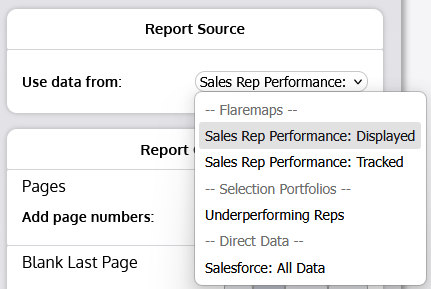
The category names will not change and are there to help users identify the type of each available source; however, the source names themselves will reflect names assigned by users. For example, if a Flaremap was named “Inventory Items”, selections pertaining to that Flaremap in the list will begin with “Inventory Items” (not “Flaremap”).
Report Options
The Reporting Manager provides controls for various features made available by the Reporting Engine for use in any report. See below for a description of each of the available options and what they do.
Pages
Add page numbers: Enables the Platform Reporting Engine to automatically add page numbers to the lower right corner of each report page. The first page (typically a title page) will be skipped.
Blank Last Page
Include: Indicates whether the Platform Reporting Engine should include a blank page as the last page of the report (also known as a “vacat page”). There are four options for including the blank last page:
- No: Do not include a blank last page.
- Yes: Always include a blank last page.
- Even: Only include a blank last page if the last page is an even-numbered page (including the blank last page itself).
- Odd: Only include a blank last page if the last page is an odd-numbered page (including the blank last page itself).
Notice: Specifies what text to display on a blank last page, if included (also known as a “vacat notice”). This text will appear in small print in the center of the blank page. The default notice reads: “This page intentionally left blank.”